This is a 1080p-specific guide for interpreting bottleneck results. The actual calculator lives on the BottleneckLab homepage. At 1080p, high-FPS gaming often exposes CPU limits because the GPU finishes frames quickly and waits for the processor to prepare the next one.
A bottleneck calculator 1080p result often looks more CPU-heavy than the same build at 1440p or 4K. That does not automatically mean your CPU is bad. It means the GPU has less pixel work at 1080p, so the CPU has to feed frames faster, especially at 144Hz and 240Hz.
Building around a newer NVIDIA card? See our RTX 5070 and RTX 5070 Ti CPU pairing guide to understand why 1080p high refresh gaming needs stronger CPU-side performance.
Quick 1080p Bottleneck Diagnosis
Before upgrading anything, match your symptoms to the most likely cause. At 1080p, low GPU usage is common, but it does not always mean the same thing. FPS caps, RAM speed, VRAM usage, drivers, and temperatures can all make the result look confusing.
| What you see | Likely cause | How to confirm | First free fix |
|---|---|---|---|
| GPU usage stays low, FPS cap is not reached, one CPU core is heavily loaded | CPU bottleneck | Check per-core CPU usage and frame time during stutter | Enable XMP or DOCP, close background apps, check FPS caps |
| GPU usage sits near full load while CPU usage is comfortable | GPU bottleneck | Lower GPU-heavy settings and see whether FPS improves | Reduce shadows, ray tracing, anti-aliasing, or use DLSS / FSR / XeSS |
| Severe stutter, texture pop-in, erratic GPU usage | VRAM pressure | Watch VRAM usage near the card limit | Lower texture quality first |
| Stutter with disk activity spikes and RAM near full | RAM swapping | Task Manager shows high RAM and disk activity during stutter | Close browser tabs and background apps, enable XMP |
| Performance drops after several minutes, clock speeds fall | Thermal throttling | CPU or GPU clock drops as temperature rises | Clean dust, improve airflow, adjust fan curve |
Do not upgrade the GPU first just because FPS is low. At 1080p high refresh rates, the GPU may already have spare capacity. If the CPU game thread is the ceiling, a faster GPU can still sit underused.
Why 1080p Makes CPU Bottlenecks More Visible
At 1080p, a modern GPU can finish frames quickly because each frame has fewer pixels than 1440p or 4K. That sounds like good news, but it also means the CPU has less time to prepare the next frame. The faster the GPU finishes, the faster the CPU must feed it.
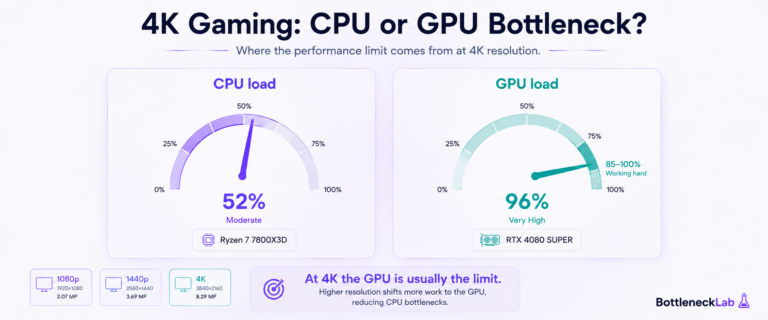
At 4K, the GPU is busy rendering far more pixels per frame. The CPU has more breathing room between frame submissions. That is why a build can look CPU-limited at 1080p, more balanced at 1440p, and GPU-limited at 4K. It is not a contradiction. It is a workload shift.
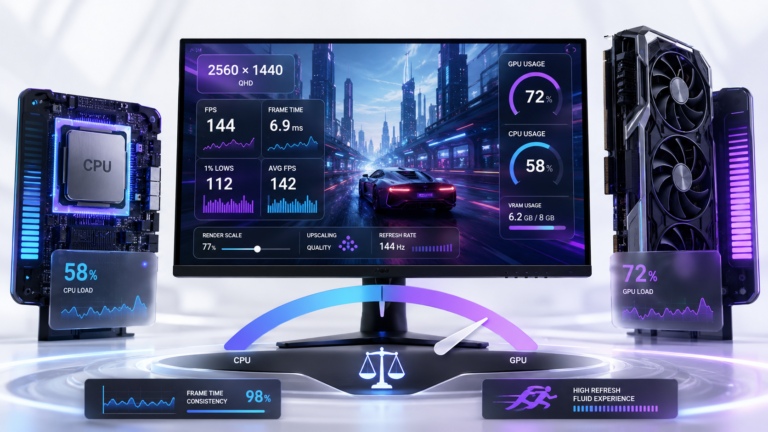
Resolution comparison: If your build looks CPU-heavy at 1080p, the same hardware may feel healthier at QHD because the GPU has more rendering work. Here is why 1440p often looks more balanced when you read a bottleneck result.
For a real budget GPU example, see our RTX 5060 Ti CPU pairing guide, where the 8GB and 16GB versions change how you should think about 1080p upgrades.
What the CPU is doing per frame
Before the GPU renders a frame, the CPU handles game logic, AI, physics, animation, draw calls, background tasks, and engine scheduling. At 60Hz, each frame has about 16.7 milliseconds of budget. At 144Hz, that drops to about 6.9 milliseconds. At 240Hz, it drops to about 4.2 milliseconds.
Symptoms when the CPU is the limit at 1080p
- GPU usage drops during busy scenes even though FPS also drops.
- Lowering graphics settings does not improve FPS much.
- One or two CPU cores look heavily loaded while the total CPU number looks moderate.
- Input delay feels inconsistent because frame time spikes are uneven.
- Raising resolution to 1440p makes GPU usage healthier and frame pacing more consistent.
For a deeper explanation of the calculation logic, read our guide on how CPU and GPU balance is estimated.
How Refresh Rate Changes the Result at 1080p
Refresh rate is the reason two 1080p users can get completely different bottleneck results with similar hardware. A 60Hz player needs stable 60 FPS. A 240Hz esports player needs four times as many frames per second, and the CPU has to prepare every one of them.
1080p 60Hz
The GPU is often the first thing to check. Most modern CPUs can prepare 60 FPS comfortably, so performance problems usually come from GPU tier, settings, VRAM, or thermals.
1080p 144Hz
Both CPU and GPU matter. Older processors, slow RAM, background apps, and high view-distance settings can start to create CPU-side frame-time spikes.
1080p 240Hz
CPU throughput becomes critical in esports titles. A GPU upgrade alone may not help if the CPU game thread cannot consistently feed frames fast enough.
View distance, crowd density, physics, AI simulation, large multiplayer scenes, background apps, and game launchers can all increase CPU pressure at 1080p. GPU-heavy settings like ray tracing, shadows, and high anti-aliasing usually shift more work back to the graphics card.
Best CPU-GPU Balance for 1080p Gaming
The core principle is simple: at 1080p, you should care more about the CPU than you would at 1440p or 4K. That does not mean every 1080p player needs an expensive CPU. It means your CPU should match your refresh rate target.
| Pairing | Target | What to expect |
|---|---|---|
| Ryzen 5 5600 + RTX 3060 | 1080p 60Hz | Balanced for casual high settings. GPU is often the limit. |
| i5-12400F + RTX 3060 | 1080p 60Hz / light 144Hz | Good entry-mid pairing. Enable XMP for better CPU-side consistency. |
| Ryzen 5 5600 + RTX 4070 | 1080p 144Hz | Works well in many games, but can show CPU pressure in esports or high-FPS scenarios. |
| i5-13600K + RTX 4070 | 1080p 240Hz esports | Strong high-FPS pairing where the CPU can keep the GPU better supplied. |
| Ryzen 7 7800X3D + RTX 4070 | 1080p 240Hz esports | Excellent for CPU-sensitive competitive games and strong 1% lows. |
For a real pairing example, see our Ryzen 5 5600 and RTX 4070 at 1080p guide, where the same hardware behaves differently at 1080p and 1440p.
If you are planning a new RTX 4070 build, our guide on how to choose a CPU for RTX 4070 by resolution explains which CPU tier makes sense before you spend money.
If your current CPU is Intel’s budget Alder Lake chip, check our dedicated i5-12400F with RTX 4070 at 1080p analysis to see when the pairing is fine and when high-refresh gaming starts to expose CPU pressure.
With very powerful GPUs, 1080p can become CPU-limited faster than many users expect. If you are pairing this resolution with Nvidia’s high-end card, check what CPU makes sense for an RTX 4080 at 1080p.
When a 1080p Bottleneck Is Worth Fixing
A small 1080p bottleneck result is not automatically bad. At 60 FPS, you may never feel it. At 240Hz, the same imbalance can show up as unstable 1% lows, frame-time spikes, and inconsistent input feel.
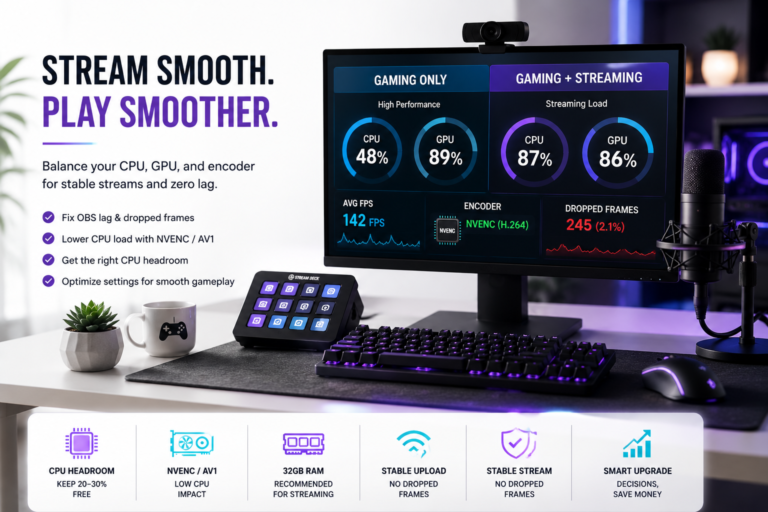
Single-PC streaming tip: 1080p high-FPS gaming already pushes the CPU harder. If you add OBS, browser sources, and encoding on the same PC, check our guide to a gaming and streaming bottleneck at 1080p before blaming only the CPU or GPU.
It is worth fixing if:
- You target 144Hz or 240Hz and FPS drops during busy scenes.
- GPU usage drops while one CPU core is heavily loaded.
- Lowering graphics settings does not improve FPS.
- You play esports, simulation, strategy, or large multiplayer games.
It is probably fine if:
- You target 60 FPS and hit it consistently.
- Frame time is stable during real gameplay.
- Your GPU is already near full usage at quality settings.
- Raising resolution to 1440p makes the system feel smoother.
Decision check: If GPU usage drops during stutter while one CPU core is near its limit, the CPU is likely the problem. If GPU usage is near full load and CPU usage is comfortable, you are probably GPU-limited, which is normal in many AAA games.
If CPU-side pressure is confirmed, follow the practical steps in our guide to fix a confirmed CPU bottleneck. If the GPU is the part already maxed out, compare your symptoms with how to diagnose a GPU-side limit.
How to Use a Bottleneck Calculator for 1080p
Use the calculator as a starting point, not a final verdict. Select your CPU, GPU, and 1080p resolution, then compare the result with real monitoring data from the games you actually play.
If you want the cleanest starting point, run your CPU and GPU through the main 1080p check on BottleneckLab first, then use this guide to understand why Full HD results can look more CPU-heavy than 1440p or 4K.
What a balanced 1080p result looks like
A balanced 1080p result usually means neither component is severely holding back the other for your chosen target. A small CPU-side lean is common at 1080p because the GPU finishes frames quickly.
What a CPU-heavy 1080p result means
A CPU-heavy result means your processor may struggle to feed the GPU at the frame rates the GPU can produce. This matters most at 144Hz and 240Hz, not casual 60 FPS gaming.
What a GPU-heavy 1080p result means
A GPU-heavy result means the graphics card is doing the limiting. That is common in demanding AAA games, ray tracing, high settings, or when VRAM is under pressure.
For monitoring, tools like MSI Afterburner’s official monitoring tool can help you watch GPU usage, CPU usage, temperatures, and frame time during real gameplay.
Check Your Own 1080p Result
The safest way to understand your build is to test the same CPU and GPU at 1080p, then compare the result with real GPU usage, per-core CPU usage, frame time, and 1% lows.
Test your build at 1080p →Final 1080p Bottleneck Verdict
At 1080p, CPU selection matters more than it does at 1440p or 4K because the GPU has less pixel work and can finish frames quickly. That makes the CPU responsible for feeding high FPS consistently, especially at 144Hz and 240Hz.
Do not treat a bottleneck calculator 1080p result as a panic signal. Treat it as a guide for what to check next. Look at GPU usage, per-core CPU usage, frame time, 1% lows, RAM speed, background apps, thermals, and FPS caps before upgrading hardware.
The best 1080p setup is not always the most expensive GPU. It is the CPU and GPU combination that matches your refresh rate, game type, settings, and upgrade budget.
Frequently Asked Questions
Does 1080p cause a CPU bottleneck?
1080p does not cause a CPU bottleneck by itself, but it makes CPU limits easier to see. Because the GPU has fewer pixels to render, it can finish frames quickly and wait for the CPU. This is most visible at high refresh rates like 144Hz or 240Hz, especially in esports and CPU-sensitive games.
Why does my GPU usage drop at 1080p?
Low GPU usage at 1080p often means the GPU is waiting for the CPU to prepare frames. It can also be caused by V-Sync, FPS caps, background apps, drivers, RAM speed, or game engine limits. Watch GPU usage, per-core CPU usage, and frame time together before deciding the CPU is the problem.
Is a 10% bottleneck bad at 1080p?
Usually not. A small 1080p bottleneck estimate can be normal because the GPU often finishes frames quickly at this resolution. It only becomes a real issue if you notice unstable 1% lows, stuttering, low GPU usage during FPS drops, or frame-time spikes in the games you actually play.
Should I upgrade my CPU for 1080p gaming?
Upgrade only after checking the free fixes first. Enable XMP or DOCP, use dual-channel RAM, close background apps, check temperatures, remove FPS caps, and monitor per-core CPU usage. If GPU usage stays low while one CPU core is heavily loaded during stutter, a CPU upgrade may help.
Does 1080p 144Hz need a stronger CPU?
1080p 144Hz needs a stronger CPU than 1080p 60Hz because the processor must prepare frames much faster. Most modern six-core CPUs can handle many 144Hz games, but older processors, slow RAM, or CPU-heavy games can create frame-time spikes and inconsistent 1% lows.
Why does 1440p sometimes feel smoother than 1080p?
1440p can feel smoother when the system shifts from an uneven CPU limit to a steadier GPU limit. The FPS may not always be higher, but frame pacing can feel more consistent because the GPU has more rendering work and the CPU has more breathing room between frames.
What is the best CPU-GPU balance for 1080p?
For 1080p 60Hz, a modern six-core CPU with a mid-range GPU is usually enough. For 1080p 144Hz, CPU speed and RAM configuration matter more. For 1080p 240Hz esports, prioritize a fast CPU with strong single-thread performance and stable 1% lows over simply buying a larger GPU.