At 4K, gaming is usually GPU-bound: the graphics card renders four times the pixels of 1080p per frame, so it becomes the ceiling while the CPU runs with headroom. That does not mean the CPU is irrelevant. High-refresh targets, simulation and esports games, frame generation, and background load can still cause frame-time spikes and weak 1% lows.
This is a guide to reading a 4K bottleneck result, not a separate tool. The calculator itself lives on the homepage: to test your exact parts, use the CPU GPU bottleneck calculator on the BottleneckLab homepage with 4K selected, then come back here to understand what the result actually means and which component, if any, needs attention. Most 4K builds are GPU-led by design, so the real questions are whether your GPU is strong enough for your target frame rate and whether your VRAM is large enough for the games you play.
Quick Verdict: Is 4K Gaming CPU or GPU Bottlenecked?
4K gaming is usually GPU-bound. The GPU renders about 8.3 million pixels per frame, four times 1080p, so each frame takes long enough that the CPU finishes its work early and waits. The CPU still matters for 1% lows and frame pacing, and it can become the limit in CPU-heavy games, at high-refresh 4K (120Hz+), or while streaming. For most 4K AAA gaming at 60–80 FPS, a modern mid-range CPU is enough and the GPU is where the performance lives.
Any bottleneck language here is a directional interpretation under typical conditions, not an exact measurement. Real 4K behavior depends on the game engine, GPU and CPU tier, settings, ray tracing, DLSS/FSR/frame generation, VRAM, RAM speed, refresh-rate target, background apps, thermals, and drivers.
Why 4K Usually Shifts the Bottleneck to the GPU
Rendering one frame at 4K means shading and outputting roughly 8.3 million pixels, versus about 2.1 million at 1080p and 3.7 million at 1440p. The GPU does roughly four times the per-pixel work of 1080p for every frame, so each frame simply takes longer to draw. Here is the key mechanism: the CPU takes about the same time to prepare a frame no matter the resolution, because it handles game logic, AI, physics, and draw calls, not pixels. If frame preparation takes the CPU a few milliseconds at 1080p, it takes about the same at 4K. Because the GPU now spends much longer per frame, the CPU finishes early and waits. The pipeline becomes GPU-paced rather than CPU-paced.
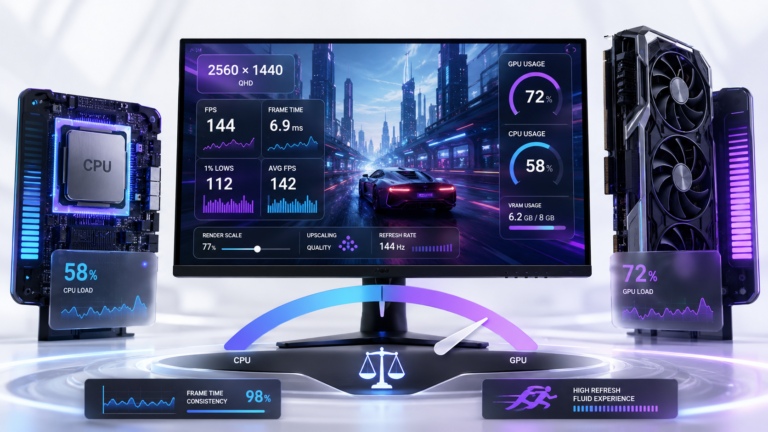
That is why a build that looks CPU-limited at 1080p often becomes balanced or GPU-limited at 4K, with no hardware change. A GPU sitting at 95–99% usage during 4K gaming is normal and healthy, it means you are getting full value from the card. The signs you are GPU-bound at 4K are consistent: GPU usage near 90–100% for most of the session, CPU usage moderate, frame times stable, and lowering graphics settings or enabling upscaling visibly improving FPS. If that describes your system, the GPU is the natural ceiling and a faster CPU would not help.
Choosing parts for a newer 4K build? Our RTX 5070 and RTX 5070 Ti CPU guide explains why many 4K gamers do not need to overspend on the processor.
When the CPU Still Matters at 4K
The CPU still matters at 4K for 1% lows and frame pacing, and it can become the actual limit in CPU-heavy games (large-scale strategy, simulation, MMOs, dense open worlds), at high-refresh 4K targets (120Hz+), in competitive esports pushing very high FPS, and while streaming. A useful rule: refresh-rate target drives CPU demand more than resolution does.
Titles like Microsoft Flight Simulator, Cities: Skylines, Starfield, and big MMOs can lean on the CPU regardless of resolution because their AI, physics, and world simulation do not scale with pixels. Targeting 4K 120Hz instead of 4K 60Hz roughly doubles how often the GPU asks the CPU for a new frame, which raises CPU demand. And average FPS hides this: the main effect of a weaker CPU is lower 1% and 0.1% lows, the occasional dips that you feel as stutter even when the average looks fine. So “4K is GPU-bound” is true for most AAA gaming at 60–80 FPS, but it is not a universal law.
| Game type | 4K CPU demand | Why |
|---|---|---|
| Standard AAA (single-player) | Low | GPU-bound; CPU finishes frames early at 60–80 FPS. |
| Simulation / strategy / MMO | High | AI, physics, and world state load the CPU regardless of pixels. |
| Competitive / esports | High | Very high FPS targets make the CPU produce many base frames. |
| High-refresh 4K (120Hz+) | Moderate–high | More frames per second means more CPU frame prep. |
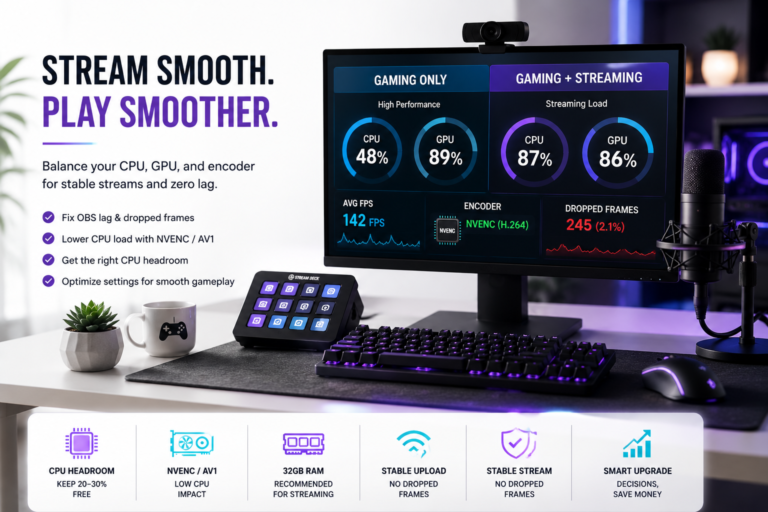
| Streaming while gaming | Higher | Encoding and capture compete for CPU time. |
1080p vs 1440p vs 4K Bottleneck Behavior
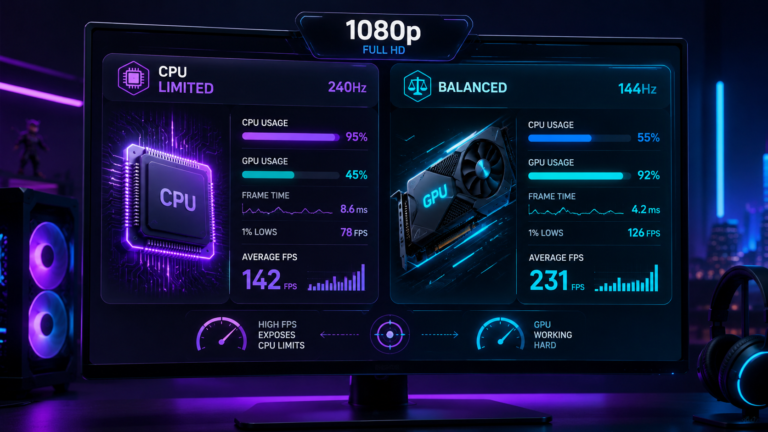
1080p leans on the CPU because the GPU finishes frames fast; 1440p is the balanced middle; 4K shifts almost all the per-frame work to the GPU. The same CPU and GPU pair can be CPU-limited at 1080p and GPU-limited at 4K with no hardware change, because resolution changes only the GPU’s workload, not the CPU’s.
| Resolution | Pixels per frame | Usual limiter | Why |
|---|---|---|---|
| 1080p | ~2.1M | CPU often limiting | GPU renders quickly; CPU may not keep pace at high FPS. |
| 1440p | ~3.7M | Balanced | ~77% more pixels than 1080p; load shared more evenly. |
| 4K | ~8.3M | GPU almost always | 4× the pixels of 1080p; CPU rarely the first constraint. |
For the other two resolutions in detail, see why 1080p exposes CPU limits and how 1440p changes bottleneck results.
How to Read a 4K Bottleneck Result
Run your CPU and GPU through the homepage tool with resolution set to 4K, and you will see a percentage and a direction. Here is how to interpret the three typical patterns at this resolution.
GPU bottleneck at 4K (expected). This is the normal, healthy outcome. The GPU is doing most of the work and is the natural ceiling. A small figure means the build is well matched; a larger one means the GPU is limiting your target frame rate or settings. The first responses are lowering GPU-heavy settings or enabling upscaling, before any hardware upgrade.
Balanced result at 4K (best case). Usually a top-tier build where neither part is far ahead. Monitoring should show the GPU at roughly 88–98% with the CPU at moderate load and stable frame times. Nothing to fix.
CPU bottleneck at 4K (uncommon). Rare in standard AAA play, but real in simulation-heavy titles and at high frame-rate targets. Verify it first: open a monitoring tool and confirm a CPU core is actually near its ceiling while GPU usage drops below ~80%. Enabling XMP or EXPO so RAM runs at its rated speed is the free first step before any hardware change.
Treat the number as a starting point, not a verdict. For how much to trust any estimate, see how accurate bottleneck calculators are.
4K Gaming Upgrade Decision: CPU or GPU First?
For 4K, upgrade the GPU first in almost all cases. If the GPU sits at 90–100% while a CPU core stays well below its ceiling, the graphics card is the limit and a faster CPU changes nothing. Upgrade the CPU first only if monitoring shows a core pinned near 100% with GPU usage dropping, typical of sims, MMOs, or very high-refresh targets.
| What monitoring shows | Meaning | Action |
|---|---|---|
| GPU 90–100%, CPU core below ~65% | GPU-bound (normal at 4K) | Lower settings / upscale, or upgrade the GPU. |
| CPU core 85–100%, GPU below ~80% | CPU-limited (rare at 4K) | Enable XMP/EXPO; consider a CPU upgrade. |
| Both below ~75% with poor FPS | Not a CPU/GPU balance problem | Check VRAM overflow, thermals, drivers, storage, PSU. |
Examples make this concrete. An RTX 4080 Super with a Ryzen 5 5600 at 4K shows a GPU bottleneck: the GPU runs at ~92–98% and the CPU sits comfortably at ~45–60%, which is exactly what you want, and a CPU upgrade would not help. An RTX 4070 with an i5-12400F at 4K is also GPU-led, but its 12GB VRAM can run close to capacity at native 4K ultra, so enabling DLSS or FSR quality (which renders internally near 1440p) eases both load and VRAM pressure. If you want the top of this range, see the Ryzen 7 7800X3D and RTX 4090 at 4K breakdown and the CPU options for an RTX 4080. When the GPU is clearly the limit, here is how to fix a confirmed GPU bottleneck; when a core is genuinely maxed, here is how to fix a confirmed CPU bottleneck.
Common 4K Bottleneck Mistakes
- GPU too weak for 4K. A mid-range card at native 4K in demanding titles falls short even with compromises. If budget is tight, upscaling from 1440p is more practical than native 4K on an undersized GPU.
- Not enough VRAM. 8GB is below the practical 4K minimum; 12GB works but runs tight; 16GB is the comfortable starting point, with 20GB+ ideal for path tracing and longevity.
- Overspending on the CPU. A modern mid-range CPU handles 4K AAA without limiting a top GPU. Pouring budget into the CPU for a 4K build returns little.
- Underpowered PSU. High-end GPUs draw ~300–450W under load; an undersized supply throttles clocks and mimics a bottleneck. Size the PSU to the card.
- Inadequate cooling. At 4K the GPU runs near full load for long sessions; a throttling GPU loses clocks and consistency. Check airflow and fan curves.
- Slow storage. Large 4K texture packs stream poorly from an HDD, causing load stalls and stutter. An NVMe SSD helps in open-world and DirectStorage titles.
4K Bottleneck Symptoms and What They Mean
| Symptom | Likely cause at 4K |
|---|---|
| GPU at 95–99%, steady frame times | Healthy GPU-bound state, this is the goal. |
| Low GPU usage with FPS drops | CPU limit, a frame cap, or background load. |
| Irregular stutter, textures popping in | VRAM overflow spilling to system RAM over PCIe. |
| FPS slowly drops over a long session | Thermal throttling on GPU or CPU. |
| Weak 1% lows despite a fine average | CPU frame-pacing limit in CPU-heavy moments. |
| Long load stalls in open worlds | Slow storage limiting asset streaming. |
VRAM and Settings at 4K
VRAM capacity and GPU speed are separate problems. A slow GPU renders frames too slowly; a VRAM shortage causes texture data to overflow into system RAM over the PCIe bus, which is far slower and produces irregular stutter that no amount of GPU horsepower fixes. At 4K the frame buffer alone is four times larger than at 1080p, and texture, shadow, and post-processing buffers scale with output resolution, so VRAM pressure is much higher. Monitor VRAM usage during play; if it approaches the card’s maximum, reduce texture quality or enable upscaling, which renders internally at a lower resolution and cuts both load and VRAM use.
| VRAM | 4K suitability | Notes |
|---|---|---|
| 8GB | Limited | Below practical 4K minimum; texture cuts needed in most recent AAA. |
| 12GB | Functional | Works at 4K high; tight at ultra in texture-heavy titles. Upscaling helps. |
| 16GB | Recommended | Comfortable for current 4K high/ultra with reasonable longevity. |
| 20GB+ | Ideal | Handles path tracing; best for multi-year 4K builds. |
Upscaling (DLSS, FSR) and frame generation deserve a clear note, because they change the workload. DLSS and FSR quality modes render at roughly two-thirds of native 4K and upscale to full output, cutting GPU load and VRAM pressure while keeping close to native image quality, so at 4K they are an optimization tool, not just a compromise. Frame generation adds AI-created frames on the GPU; it can lift smoothness when you are GPU-bound, but it relies on the CPU producing the real base frames, so it will not fix a CPU bottleneck and a weak CPU still caps the base rate it multiplies.
| Setting | Effect at 4K |
|---|---|
| Texture quality | Biggest VRAM driver; lower it first if VRAM overflows. |
| DLSS / FSR quality | Renders near 1440p; big GPU-load and VRAM relief. |
| Ray tracing / path tracing | Large GPU and VRAM cost; pair with upscaling. |
| Frame generation | More perceived FPS via GPU; needs CPU base frames. |
| Frame cap | Steadier frame times; eases CPU and power load. |
Check Your 4K CPU-GPU Balance
The guidance here reflects typical 4K workloads; your real result depends on the games you play and what runs in the background. A simulation-heavy or high-refresh session leans on the CPU more than a single-player AAA renderer at 4K/60. The most direct check is to run your exact parts through the CPU vs GPU bottleneck test with 4K selected, then confirm against live monitoring of GPU usage, CPU core usage, VRAM, and frame time. Read the result with this guide rather than as a single verdict.
Final Verdict
At 4K, gaming is usually GPU-bound, so a GPU bottleneck result is the expected and correct outcome, not a problem to fix. The real questions are whether the GPU is fast enough for your target frame rate and whether the VRAM pool is large enough for your games, with 16GB the comfortable 4K starting point. The CPU still matters for 1% lows and in CPU-heavy or high-refresh scenarios, so verify with monitoring before assuming a CPU upgrade will help, it usually will not at 4K.
Frequently Asked Questions
Is 4K gaming CPU or GPU bottlenecked?
Usually GPU-bottlenecked. At 4K the GPU renders four times the pixels of 1080p per frame, so it stays near full load while the CPU finishes its work early and waits. In standard AAA gaming, monitoring almost always shows the GPU as the busy component with the CPU at moderate load. The exceptions are simulation-heavy games, very high-refresh targets, and streaming, where the CPU can become the limit independent of resolution.
Does 4K reduce CPU bottleneck?
Yes, usually. Moving to 4K shifts most of the per-frame work to the GPU, so the CPU becomes less likely to be the limit, which is why a build that is CPU-limited at 1080p can be GPU-limited at 4K. But 4K does not make a weak CPU stronger: your average FPS often drops at higher resolution, and a weak CPU can still hurt 1% lows and frame pacing in demanding moments.
Can a CPU bottleneck happen at 4K?
Yes, though it is uncommon in typical AAA play. If the CPU cannot prepare frames fast enough, the GPU sits idle waiting. At 4K this is rare because the GPU spends so long per frame, but it appears in simulation-heavy games with large NPC counts, at high frame-rate targets above 60 FPS, in some older or poorly threaded titles, and while streaming. Confirm with monitoring that a CPU core is genuinely near its ceiling before acting.
Should I upgrade CPU or GPU first for 4K gaming?
For 4K, upgrade the GPU first in almost all cases. If the GPU is at 90–100% while a CPU core stays well below its ceiling, the GPU is the limit and a faster CPU changes nothing. Upgrade the CPU first only if monitoring shows a core pinned near 100% with GPU usage dropping, which mainly happens in sims, MMOs, or very high-refresh 4K. Try free fixes (XMP/EXPO, frame caps, settings) before buying.
Is 99% GPU usage normal at 4K?
Yes, it is the healthy, expected state. At 4K the GPU is meant to be the busy component, and 95–99% usage means you are getting full value from the card with no CPU bottleneck. What you do not want is low GPU usage during FPS drops, which points to a CPU limit, a frame cap, VRAM overflow, or thermal throttling. High GPU usage with steady frame times is exactly what a balanced 4K build looks like.
Does DLSS change 4K bottlenecks?
Yes. DLSS (and FSR) quality mode renders internally at roughly two-thirds of native 4K and upscales to full output, which cuts GPU render load and VRAM pressure. Because the GPU finishes frames faster, the workload can shift slightly back toward the CPU, so in a few CPU-heavy games heavy upscaling can expose a CPU limit that native 4K hid. For most builds, though, upscaling simply makes a GPU-bound 4K experience smoother.
Does frame generation increase CPU bottleneck?
Not directly. Frame generation creates extra frames on the GPU, so the perceived frame rate rises without a matching increase in CPU work. But it relies on the CPU producing the real base frames first, so a weak CPU still caps the base rate that frame generation multiplies, and it will not fix an underlying CPU bottleneck. It is most useful when you are already GPU-bound and want smoother motion at 4K.
How do I know if my CPU is limiting 4K FPS?
Open a monitoring tool like MSI Afterburner during gameplay and watch usage. If GPU usage drops below about 80% while a CPU core (not just the overall average) sits near 100% during FPS dips, the CPU is limiting you. If instead the GPU stays at 95–99% with the CPU comfortable, you are GPU-bound, which is normal at 4K. Also check VRAM, since overflow can mimic a bottleneck through irregular stutter.