If you are asking are bottleneck calculators accurate, the honest answer is: yes, but only when you understand what kind of accuracy they provide. Bottleneck calculators are useful for estimating whether your CPU or GPU may limit performance, but they cannot predict exact FPS in every game. Real results depend on the game engine, drivers, RAM, thermals, graphics settings, and background apps.
Bottleneck calculators are usually accurate for showing the direction and rough severity of a CPU-GPU imbalance. They are not exact FPS predictors and cannot see your live temperatures, drivers, background apps, RAM settings, or game-specific behavior. Use them as a helpful screening tool, then verify the result with real monitoring.
For a practical example, see our RTX 5070 and RTX 5070 Ti CPU pairing guide, which uses bottleneck-safe wording instead of fake FPS numbers or fixed bottleneck percentages.
Before you trust any percentage, test your exact CPU and GPU combo.
A bottleneck result is not a magic FPS fortune teller. It is more like a hardware warning light: useful when you know how to read it. Run your setup first, then use this guide to understand whether the result is worth acting on.
Best path: calculate first, then verify with real monitoring.
If you used an online tool and the result did not perfectly match what you saw in-game, that does not automatically mean the calculator was useless. It usually means the tool was estimating hardware balance, while your real PC was affected by extra conditions the calculator could not see.
A bottleneck tool can compare your CPU and GPU on paper, but it cannot know whether your laptop is thermal throttling, your RAM is running without XMP or EXPO, your driver is outdated, or a specific game engine is poorly optimized. So the better question is not only “Is the number accurate?” The better question is:
Accurate for what?
A good calculator is useful for identifying whether your CPU or GPU is more likely to hold back the system. It is not designed to tell you the exact FPS you will get in every game.
Before making an upgrade decision, it is smart to run your setup through the BottleneckLab tool and then compare the result with real monitoring data from your own PC.
Are Bottleneck Calculators Accurate Enough to Trust?
Yes, bottleneck calculators can be accurate enough to trust as a starting point, especially when you use them to understand CPU-GPU balance. The mistake is expecting them to work like a live benchmark.
A calculator does not run your game. It does not test your exact Windows installation. It does not check your cooling, BIOS settings, background apps, driver version, or power limits. Instead, it compares expected CPU and GPU performance based on stored performance data, resolution, and use case.
Read the result as directional guidance, not exact FPS loss
If a calculator says your CPU is likely limiting your GPU at 1080p, that is often a useful warning. It means your processor may struggle to feed frames quickly enough to the graphics card, especially in high-refresh-rate games.
A 24% CPU bottleneck does not mean you are losing exactly 24% of your FPS. It means the tool sees a meaningful imbalance between the CPU and GPU for that resolution or use case.
Best way to read it: treat the percentage as a practical signal that points you toward the likely limiting component, then confirm it with real usage, temperatures, and in-game performance data.
What “Accuracy” Really Means for a Bottleneck Tool
The word “accurate” causes confusion because users expect different things. For a deeper explanation of the scoring logic behind these estimates, see our guide on how a bottleneck calculator works.
Two users may ask “accuracy” but mean very different things
“Will this CPU hold back this GPU?”
“How many FPS will I get in this exact game?”
Important: those are not the same question. A bottleneck tool can be useful for spotting CPU-GPU balance, but exact FPS depends on the actual game, settings, drivers, temperatures, and system condition.
A bottleneck calculator can be useful for the first question. It can estimate whether the CPU or GPU is more likely to become the limiting component. But exact FPS depends on many other variables, including the game, graphics settings, driver version, map, scene complexity, RAM configuration, and system temperatures.
Real-world example: A good example is our Ryzen 5 5600 and RTX 4070 example, where the same pairing can look CPU-limited at 1080p high FPS but much more balanced at 1440p.
A calculator can guide you, but a real benchmark confirms it
It can show whether your build looks balanced and whether your CPU or GPU is more likely to become the limiting component.
A benchmark or live monitoring session shows what is actually happening on your PC with your games, settings, temperatures, and drivers.
A small bottleneck percentage usually means the build is reasonably balanced. A large bottleneck percentage means one component may be noticeably limiting the other. The exact number is less important than the direction, severity, and context.
What Affects Real Performance That a Calculator Cannot See
A bottleneck calculator compares hardware potential. Your real PC performance depends on more than hardware names. Here are the most common reasons calculator results can differ from actual gameplay.
Driver Version
GPU drivers can affect performance, stability, frame pacing, and game-specific optimization. A newer driver may improve one title and create problems in another. A calculator cannot know which driver version your PC is currently using.
Background Apps
Browsers, Discord, OBS, launchers, antivirus scans, and recording software can all use CPU, RAM, storage, or GPU resources. If your system is busy in the background, your real result may look worse than the calculator estimate.
Temperatures and Thermal Throttling
If your CPU or GPU gets too hot, it can reduce clock speed to protect itself. This is called thermal throttling. When that happens, the component performs below its normal capability, and a calculator based on normal performance data may look too optimistic.
Laptop Power Limits
Laptop GPUs can vary heavily because manufacturers set different power limits. Two laptops with the same GPU name can perform differently if one has a higher power limit and better cooling. This is why laptop bottleneck results are harder to predict than desktop results.
RAM Configuration
RAM speed and memory channel configuration can affect CPU performance. If XMP, EXPO, or DOCP is not enabled, your RAM may run slower than expected. Single-channel RAM can also create CPU-like bottleneck symptoms, especially in games that depend heavily on memory bandwidth.
Game Optimization
Some games are well optimized. Others suffer from poor threading, shader compilation stutter, uneven frame pacing, or heavy CPU overhead. A calculator can estimate hardware balance, but it cannot fully predict every game engine’s behavior.
VRAM Pressure
A GPU can become limited not only by raw rendering power but also by VRAM capacity. If a game needs more VRAM than your graphics card has available, it may spill data into system memory and cause stuttering. That can feel like a GPU bottleneck, but the solution may be lowering textures rather than buying a faster GPU with the same VRAM capacity.
When Bottleneck Calculators Usually Match Reality
Bottleneck calculators tend to be most useful when the system is healthy and the game behaves normally. They usually match real-world direction better when:
Bottleneck calculator results are usually most useful when the system is healthy, temperatures are normal, and the game behaves predictably. Results become less precise when cooling, power limits, background load, or game optimization change the real-world behavior.
| Scenario | Calculator Reliability | Why |
|---|---|---|
| Desktop gaming PC with normal temperatures | High | Hardware performs close to expected levels. |
| 1080p high-refresh gaming | Good | CPU limits are easier to identify. |
| 1440p balanced gaming | Good | CPU and GPU workload is easier to compare. |
| 4K gaming | Good for GPU limits | GPU workload usually dominates. |
| Gaming laptop | Mixed | Cooling and power limits vary heavily. |
| Poorly optimized game | Mixed | Game engine behavior can distort results. |
| Background-heavy system | Lower | Extra load changes CPU/RAM behavior. |
Best interpretation: trust the calculator most when your PC is running normally. If temperatures, drivers, power limits, or background apps are affecting performance, verify the result with live monitoring before making an upgrade decision.
Accuracy tip: Resolution is one reason calculator results can feel confusing. At Full HD, the CPU often has to feed frames faster, so here is why 1080p results can look CPU-heavy even when the same build feels balanced at 1440p.
A calculator result is strongest when it agrees with what monitoring tools show. For example, if the calculator predicts a CPU-side bottleneck and your live monitoring shows high CPU usage with GPU usage sitting below full load, the result is probably pointing in the right direction.
If the calculator predicts a GPU bottleneck and your GPU usage is consistently near full utilization, that also supports the result. But if the calculator and monitoring disagree, do not assume the tool is automatically wrong. First check temperatures, drivers, RAM settings, background apps, and the specific game you are testing.
Bottleneck Calculator vs Real Performance Testing
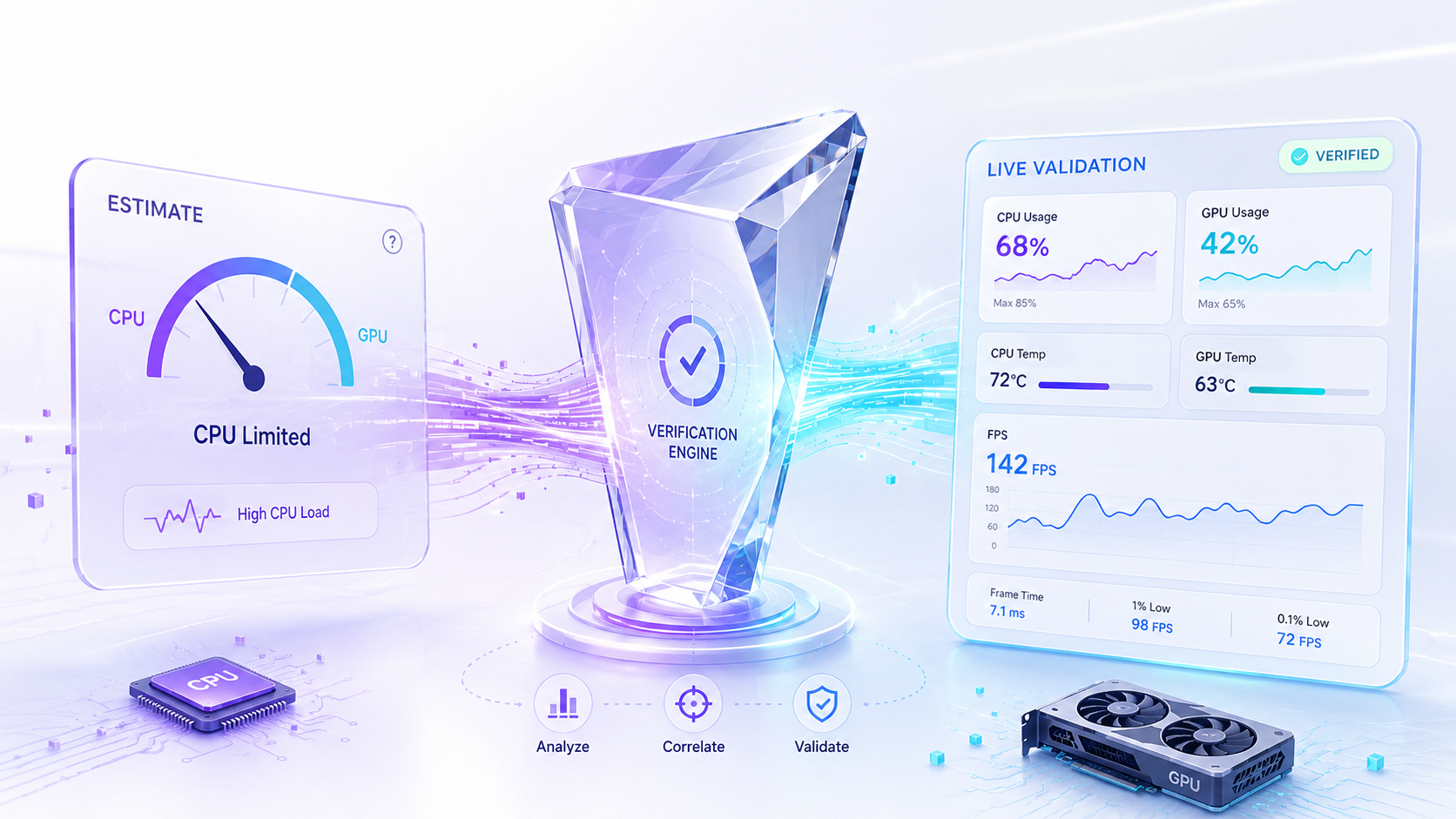
A bottleneck calculator and a real benchmark answer different questions.
A bottleneck calculator and real performance testing answer different questions. The calculator is useful for a fast CPU-GPU balance estimate, while monitoring and benchmarks show what is actually happening on your PC.
| Method | Best For | Limitation |
|---|---|---|
| Bottleneck calculator | Quick CPU-GPU balance estimate. | Cannot see your live system condition. |
| In-game benchmark | Measuring performance in one game. | Only applies to that game and settings. |
| MSI Afterburner overlay | Checking live CPU/GPU usage. | Requires correct interpretation. |
| HWiNFO | Checking temperatures, clocks, power, and sensors. | More technical for beginners. |
| CapFrameX | Analyzing FPS, frame times, and stutter. | Requires benchmark data collection. |
Use the calculator first to identify the likely direction of the imbalance between your CPU and GPU.
Then use real monitoring or benchmarks to confirm what is happening on your actual PC.
Best workflow: use the calculator for fast direction, then verify with real performance data before making an upgrade decision.
How to Verify Your Bottleneck Result
To verify your result, monitor your CPU usage, GPU usage, temperatures, clocks, RAM usage, and VRAM usage while gaming. You can use tools such as MSI Afterburner, HWiNFO, or CapFrameX.
Test in the game where you actually notice the problem. Play for several minutes in a demanding area, not just a quiet menu or empty scene.
Use these signs to compare the calculator result with what your PC is actually doing during gameplay. The goal is to confirm whether the CPU, GPU, or another system issue is really causing the performance limit.
Signs of a CPU Bottleneck
You may have a CPU bottleneck if:
- CPU usage is very high.
- GPU usage is noticeably below full load.
- Lowering resolution does not improve FPS much.
- Stuttering appears during busy scenes.
- High-refresh-rate targets are difficult to maintain.
If monitoring confirms that the CPU really is the limiting component, the next step is not guessing at upgrades. See what to check first in our practical guide to fixing a CPU bottleneck.
Signs of a GPU Bottleneck
You may have a GPU bottleneck if:
- GPU usage is consistently near full load.
- CPU usage has headroom.
- Lowering resolution improves FPS quickly.
- Reducing graphics settings gives a clear FPS increase.
- VRAM usage is close to the card’s limit.
Signs the Calculator Result Needs More Investigation
Be careful if:
- Your FPS is much lower than expected.
- CPU and GPU usage both look low.
- Temperatures are very high.
- Clock speeds are dropping during gameplay.
- RAM is running at default speed.
- VRAM is maxed out.
- The issue happens only in one specific game.
Best verification rule: if the calculator result and live monitoring point in the same direction, the result is usually useful. If they disagree, check temperatures, drivers, RAM settings, background apps, and game-specific behavior before upgrading.
How Reliable Is a Bottleneck Calculator Before an Upgrade?
A bottleneck calculator is very useful before an upgrade because it can prevent mismatched purchases. For example, buying a high-end GPU while keeping an older CPU may not give the improvement you expect at 1080p. The GPU may have plenty of rendering power, but the CPU may not deliver frames fast enough to use it fully.
The opposite can also happen. Upgrading the CPU while using a weak GPU may improve smoothness in some games, but it may not raise FPS much if the graphics card is already the main limit.
This is where a calculator helps most. It gives you a fast warning before you spend money. It does not make the final decision for you, but it tells you which component deserves more attention. Before upgrading, check your exact CPU and GPU combination with BottleneckLab, then compare the result with your real usage data.
So, Can You Trust Bottleneck Calculators?
Trust the tool for the right job
Yes, you can trust bottleneck calculators when you use them as a starting point for CPU-GPU balance, not as a perfect replacement for live testing on your actual PC.
Useful for
- Spotting likely CPU-GPU imbalance.
- Comparing upgrade options.
- Understanding resolution impact.
- Avoiding mismatched hardware purchases.
- Deciding what to investigate first.
Not useful for
- Exact FPS prediction.
- Diagnosing thermal throttling automatically.
- Detecting background apps.
- Measuring live frame pacing.
- Replacing real benchmarks.
- Identifying every game-specific issue.
The honest answer: bottleneck calculators are reliable screening tools, not final measurement instruments.
Use the calculator first. Then verify with monitoring. That combination gives you the most practical answer. If the calculator and your monitoring data point in the same direction, you can be much more confident. If they disagree, investigate the system conditions before buying new hardware. For the best result, run your setup through BottleneckLab first, then confirm the direction with real monitoring in the games you actually play.