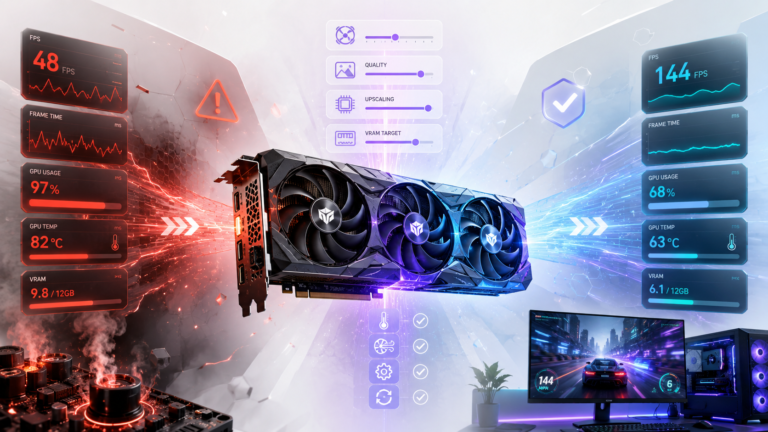
To fix a CPU bottleneck, first confirm that the CPU is really the limit by checking CPU usage, GPU usage, frame pacing, and 1% lows during gameplay. Then rule out common fake bottlenecks such as single-channel RAM, XMP or EXPO being disabled, background apps, frame caps, or thermal throttling. Try free fixes first, and only consider a CPU upgrade if the problem remains after testing.
If you are trying to learn how to fix a CPU bottleneck, the first step is not buying a new processor. It is confirming that the CPU is really the part holding back your system.
A CPU bottleneck can feel frustrating because the symptoms are easy to notice but not always easy to interpret. Your graphics card may look underused, FPS may stop improving even after lowering visual settings, and busy scenes may feel less smooth than the average frame rate suggests.
The good news is that not every CPU bottleneck means you need a new processor. Some are genuine hardware limits. Others come from RAM setup, background software, heat, or game behavior that makes a capable system look weaker than it really is.
A “CPU bottleneck” is sometimes a real hardware limit. Sometimes it is just your PC asking for one free fix first.
Before spending money on a new processor, check the pattern. Low GPU usage, stutter, or weak 1% lows can also come from RAM setup, background apps, frame caps, or heat.
Smart path: confirm first, then fix only what the evidence supports.
How to Fix a CPU Bottleneck in the Right Order
The best way to fix a CPU bottleneck is not to start with an upgrade list. It is to move through the problem in the right order:
Check CPU usage, GPU usage, frame pacing, and 1% lows before changing anything.
Check RAM setup, XMP or EXPO, frame caps, overlays, shader stutter, and thermals.
Close background apps, correct memory settings, and reduce CPU-heavy game settings.
Use the same area and settings so you can see whether the change actually helped.
Consider new hardware only when the bottleneck is still clear after proper testing.
Why the order matters: if you upgrade first, you may spend money and still keep the same stutter if the real cause was slow RAM, thermal throttling, or a frame cap making the GPU look idle.
Why Per-Core Usage Matters More Than Total CPU Percentage
One common mistake is looking only at total CPU usage. A game can bottleneck on one or two heavily loaded cores even when the overall CPU percentage looks moderate. That is why per-core monitoring is more useful than staring at one total number. If one core is pinned while the GPU still has room left, the CPU can still be the practical limit in that game.
This is also why two users with the same CPU can report different results. One may be playing a GPU-heavy single-player game at 1440p. The other may be chasing 240 FPS in a competitive title at 1080p. The hardware is the same, but the workload is not.
Real pairing example: A system using Ryzen 5 5600 with an RTX 4070 may look CPU-limited at 1080p high refresh rates, but the same pairing can be much healthier at 1440p because the GPU takes on more rendering work.
If you want to understand why the calculator can show a CPU-side result before you even open a game, read our guide on how the calculator builds its estimate.
Check for Fake CPU Bottlenecks Before Changing Hardware
A “fake CPU bottleneck” is not fake because the symptoms are imaginary. The symptoms are real. The difference is that the CPU itself is not the root problem.
This is one of the most important checks in the whole guide because it can save you from replacing a perfectly usable processor. If GPU usage stays near full load and FPS improves clearly when you lower resolution or graphics settings, the problem may be on the graphics card side instead. In that case, follow our guide on how to fix a GPU bottleneck.
Six problems that can look like a CPU bottleneck, even when the CPU is not the real cause
The symptoms can be real while the diagnosis is still wrong. These are the first things worth checking because several of them cost nothing to fix and can save a perfectly usable processor from being blamed too early.
RAM Is Running in Single-Channel Mode
If two RAM sticks are installed in the wrong slots, the system may run in single-channel mode instead of dual-channel mode. That reduces memory bandwidth and can make the CPU appear slower than it should be, especially in CPU-limited games.
Check your motherboard manual and confirm that your two sticks are in the recommended paired slots, often the second and fourth slots from the CPU socket on many consumer boards.
XMP, DOCP, or EXPO Is Not Enabled
Many memory kits do not run at their advertised speed automatically. Intel XMP exists to load optimized DDR4 or DDR5 memory profiles, while AMD platforms use related profile systems such as DOCP or EXPO depending on the board and memory kit.
If your RAM kit is rated for a higher speed but Windows shows a much lower speed, the profile may not be enabled in BIOS. That can reduce CPU-side gaming performance and make the system look more bottlenecked than it really is.
Background Apps and Overlays Are Stealing CPU Time
A browser with many tabs, Discord video, OBS left open, game overlays, launchers, RGB software, or cloud sync tools can all take small slices of CPU time. One app alone may not matter. Several together can be enough to make frame pacing worse in a game that already leans on the processor.
Open Task Manager while the game is running and sort by CPU usage. If you see software you do not need for that session, close it and retest.
Shader Compilation Stutter Is Being Mistaken for a CPU Limit
Some games stutter during first launch, after a driver update, or the first time you enter a new area because they are compiling shaders. In that moment, CPU usage can spike, GPU usage can drop, and the frame time graph can look ugly.
The clue is repetition. If the stutter appears once during first-time loads and then disappears later, it is probably shader compilation behavior. If it returns every session in the same gameplay situations, the issue deserves deeper investigation.
V-Sync or a Frame Cap Is Hiding the Real Picture
Low GPU usage does not always mean the CPU is weak. If V-Sync or a frame cap is holding the game at a target FPS, the GPU may simply be waiting because it does not need to work harder.
Temporarily test without the cap. If GPU usage rises and FPS moves above the previous limit, the system may not be CPU-bound at all. The cap was just doing its job.
Thermal Throttling Is Making a Good CPU Look Weak
A CPU that is too hot may lower its clock speed to protect itself. The result can look exactly like a CPU bottleneck: lower FPS than expected, stutter, and a processor that appears unable to keep up.
Watch temperature and clock speed together during a sustained gaming session. If temperatures climb and clocks fall at the same time, fix the cooling problem before blaming the processor.
Free Fixes That Can Reduce a CPU Bottleneck
Once you know the issue is real, start with the fixes that cost nothing.
Four fixes worth trying before you spend money on new hardware
Once the bottleneck is confirmed, begin with changes that cost nothing, are easy to test, and often recover CPU headroom before an upgrade is even on the table.
Close Unneeded Background Processes Before Gaming
This is the quickest win and the easiest one to test.
Close unnecessary browser tabs, video calls, recording tools, launchers you are not using, and background utilities that do not need to run during play. Then launch the same game, use the same scene, and compare CPU load, GPU usage, and 1% lows.
A capable CPU can feel weak when too much of its headroom is being shared with things that have nothing to do with the game.
Use the Correct Memory Profile
If you already confirmed that XMP, DOCP, or EXPO was disabled, fix that before trying anything more complicated. Reboot into BIOS, enable the correct profile, save, and then verify the new memory speed inside Windows.
Do not treat this as a magic upgrade. Treat it as making the system run the way the memory kit was intended to run in the first place.
Lower CPU-Heavy Settings, Not GPU-Heavy Ones
This is where many users accidentally make the problem worse.
If you are CPU-limited, lowering texture quality or resolution often does little to help. It can even make the CPU limitation more obvious because the GPU finishes its work faster.
The right setting depends on the game, but the principle is simple: reduce the work the CPU has to prepare, not just the pixels the GPU has to draw.
- View distance
- Crowd density
- Simulation detail
- Physics complexity
- Object density
- Traffic or AI population
Update GPU and Chipset Drivers
Drivers are not the first thing I would blame, but they are worth keeping current before making a hardware decision.
Use official sources only. NVIDIA’s official driver page and AMD’s official driver and support page are the safest places to get current graphics drivers.
If you are on an AMD platform, also check the latest chipset driver from AMD. If you are on Intel, use Intel’s official support tools rather than relying only on whatever Windows happened to install.
If you are unsure how much trust to place in a calculator result before or after testing, this guide explains how much trust to place in a bottleneck result.
When a CPU Upgrade Actually Makes Sense
A CPU upgrade should be the answer to a measured problem, not the first reaction to a slow frame rate.
This is the point where the guide stops being about quick fixes and starts asking whether the processor itself is truly the ceiling for the games, resolution, and refresh rate you actually care about.
Upgrade Only After the Free Fixes Fail
A CPU upgrade starts making sense when all of these are true:
- The bottleneck is confirmed with monitoring.
- RAM is configured correctly.
- Temperatures are under control.
- Background load is not the issue.
- The problem still affects the games and refresh rate you actually care about.
At that point, the processor may simply be the ceiling for your target. This is especially common when an older CPU is paired with a much stronger GPU for high-refresh-rate 1080p gaming.
If the processor still appears to be the repeated limit, use the CPU-first versus GPU-first upgrade comparison to compare a same-socket processor, a full platform change, and the complete cost of each path.
Start With a Same-Socket Upgrade if One Exists
If your motherboard platform still has a worthwhile same-socket upgrade available, that is often the first path to investigate. It can deliver a meaningful improvement without forcing you to replace the board, memory, and sometimes cooler at the same time.
If your current platform is already at the end of a weak upgrade path, then a wider platform change may make more sense. But that is a budget decision, not something you should jump to before confirming the bottleneck.
Streaming note: If you game and stream on the same PC, OBS, browser sources, and encoder choice can add extra CPU load. Read how streaming can change your CPU bottleneck before deciding that a hardware upgrade is the only fix.
If your CPU bottleneck appears after upgrading to a very high-end GPU, your next step is choosing a processor that matches the card and your resolution. For that situation, see these CPU upgrade options for RTX 4080 builds.
Quick Decision Table: Fix, Verify, or Upgrade?
One symptom can point to a fix, a false alarm, or a real upgrade decision
Use this table as a final checkpoint after the earlier fixes. It helps separate configuration problems from real CPU limits so you know whether to fix, verify, or move toward an upgrade.
| What you see | Most likely meaning | Best next step |
|---|---|---|
| CPU is busy, GPU is underused, and RAM profile is off | Configuration issue | Enable the correct memory profile and retest. |
| GPU usage is low only with V-Sync or a frame cap enabled | Not a real CPU bottleneck | Remove the cap briefly to verify. |
| Stutter happens mainly on first load or after a driver update | Shader compilation behavior | Retest after shaders are cached. |
| CPU clocks fall as temperatures rise | Thermal throttling | Fix cooling before considering an upgrade. |
| Bottleneck remains after free fixes and affects your real games | Genuine CPU limit | Evaluate a CPU upgrade. |
| GPU is near full usage and FPS improves when lowering resolution | GPU-side limit | Do not chase a CPU fix. |
The right fix is not the fastest guess. It is the clearest proof.
A CPU bottleneck is not solved by guessing. It is solved by confirming the pattern, fixing the easy causes first, and upgrading only when the data keeps pointing back to the processor.
Start from the right place
Use BottleneckLab as your first checkpoint, then verify the result against how your own PC actually behaves.
Visit BottleneckLab