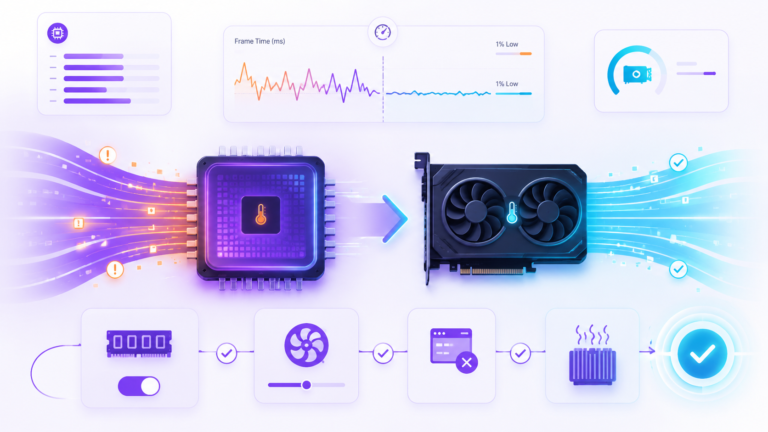
To fix a GPU bottleneck, first confirm that your graphics card is the real limit by checking GPU usage, CPU usage, VRAM usage, temperatures, clock speed, and frame time during gameplay. Then try free fixes first: enable DLSS, FSR, or XeSS, reduce GPU-heavy settings, check for thermal throttling, and rule out fake bottlenecks like V-Sync, frame caps, driver issues, or shader compilation stutter. Upgrade only if the GPU is still the limit after testing.
If you are trying to learn how to fix a GPU bottleneck, the first thing to know is simple: high GPU usage is not automatically bad.
A maxed-out GPU is not always the same problem.
A real GPU bottleneck, VRAM overflow, heat, V-Sync, frame caps, hidden ray tracing, and shader compilation can all make performance look wrong. The fix changes once you know which pattern you are actually seeing.
- GPU near 100% but low FPS
- Stutter even with high usage
- Texture pop-in or VRAM spikes
- Unsure if upgrade is needed
Best path: identify the pattern before changing settings or buying hardware.
In many games, a GPU running near full load is exactly what you want. It means the graphics card is being used properly. The problem starts when the GPU is maxed out and the FPS is still lower than your target, or when the game feels rough because frame times, VRAM, thermals, or settings are creating a different kind of limit.
A real GPU bottleneck, VRAM overflow, thermal throttling, V-Sync, frame caps, shader compilation, and hidden ray tracing can all look similar at first. The fix depends on which one you actually have.
Streaming warning: A GPU running near full load can still be normal for gaming, but streaming adds OBS render work and encoder scheduling. Here is how to think about OBS stream stability with high GPU usage before lowering settings or upgrading hardware.
How to Fix a GPU Bottleneck in the Right Order
The best way to fix a GPU bottleneck is not to lower every setting randomly. It is to move through the problem in the right order. Start with the diagnosis. Confirm that the GPU is the actual limit, not the CPU, VRAM, thermals, or a frame cap. Then use the free fixes that reduce GPU rendering load without damaging image quality more than necessary.
Fix the real GPU limit, not the first symptom you notice.
A maxed-out graphics card can be a real rendering limit, a VRAM problem, a heat issue, or a settings problem. This order keeps the diagnosis clean before you spend money.
Check GPU usage, CPU headroom, frame time, VRAM usage, temperature, and clock speed during the same game scene.
Texture pop-in, maxed video memory, erratic usage, and frame-time spikes point to a different problem than raw GPU power.
Start with Quality mode where supported. Upscaling reduces the internal rendering workload without a harsh resolution drop.
Check ray tracing, volumetrics, shadows, ambient occlusion, and reflections before reducing everything randomly.
Watch whether the GPU holds boost clock under sustained load. Then consider official driver updates or rollback if needed.
Buy new hardware only after upscaling, settings, thermals, VRAM, and drivers have been checked against your real FPS goal.
Why this order matters: a GPU that looks weak at Ultra settings with ray tracing may be perfectly usable after upscaling and smarter setting changes. Upgrade only when the measured problem remains.
Confirm It Is a GPU Bottleneck, Not VRAM Overflow
A GPU bottleneck and VRAM overflow can both produce low FPS, but they are not the same problem. A GPU bottleneck means the graphics card does not have enough rendering power for the resolution, settings, and frame rate target.
VRAM overflow means the game is asking for more video memory than the GPU has available. When that happens, the system may spill data into slower system memory, which can create stutter, texture pop-in, and ugly frame-time spikes. This is why VRAM usage, frame-time stability, and texture behavior matter just as much as the raw GPU usage percentage.
One problem is a steady rendering ceiling. The other is video memory spilling over.
Do not judge by low FPS alone. The pattern matters: steady GPU pressure usually points to a rendering bottleneck, while erratic frame-time spikes and texture issues often point to VRAM overflow.
What a Real GPU Bottleneck Looks Like
The card is working hard, but it cannot render frames fast enough at the current settings.
- GPU usage stays near full load during a demanding scene.
- CPU usage has clear headroom instead of being pinned.
- FPS improves when GPU-heavy settings are lowered.
- Frame time stays fairly stable, even when FPS is lower than desired.
- 1% lows stay reasonably close to the average FPS.
What VRAM Overflow Looks Like Instead
The card may have rendering power, but the game is running out of dedicated video memory.
- Texture pop-in appears while moving through open areas.
- Sudden frame-time spikes interrupt otherwise normal gameplay.
- 1% lows drop much harder than the average FPS suggests.
- GPU usage jumps around instead of staying steady.
- Crashes or out-of-memory errors appear in heavy scenes.
The Simple Test That Separates Them
Use a monitoring overlay such as MSI Afterburner with RivaTuner Statistics Server and watch the pattern during the same demanding gameplay scene. You are not looking for one perfect number. You are looking for whether the limit is steady or chaotic.
- GPU usage
- CPU usage
- VRAM usage
- Frame time
- GPU temperature
- GPU clock speed
Use Upscaling Before Lowering Everything
Upscaling is usually the highest-impact free fix for a GPU bottleneck in supported games. Instead of rendering every frame at native resolution, the game renders at a lower internal resolution and reconstructs the image back to your display resolution. That reduces the GPU’s pixel workload while keeping the image sharper than a normal resolution drop.
This is why upscaling should usually come before lowering half the graphics menu. The practical goal is to reduce the internal rendering workload while keeping the final image close to your monitor’s native resolution.
Upscaling is the cleanest first lever because it reduces the work before you damage the whole image.
The practical goal is to reduce the internal rendering workload while keeping the final image close to your monitor’s native resolution. Start with Quality mode, then move only as far as your FPS target requires.
Workload shift
DLSS: Best for NVIDIA RTX Cards
Use first when your RTX GPU and the game both support it.
NVIDIA’s DLSS technology is built for RTX graphics cards and is one of the first upscaling options worth trying when a supported game is GPU-limited.
If your GPU supports it and the game includes it, start with DLSS Quality mode. Quality mode is usually the safest starting point because it keeps image quality close to native while reducing GPU load.
Balanced can help if Quality is not enough. Performance mode can help at higher resolutions, but it can look softer depending on the game.
FSR: Broad Compatibility Across GPUs
Useful on many AMD, NVIDIA, and Intel GPUs depending on game support.
FSR is AMD’s upscaling technology, and its biggest advantage is compatibility. It can work across many AMD, NVIDIA, and Intel GPUs depending on the game.
If you do not have an RTX card, FSR is often the best free option to reduce GPU load. Start with Quality mode. Move to Balanced only if the image and responsiveness still feel right.
FSR can be especially helpful on older or mid-range cards where native resolution is slightly too demanding.
XeSS: Strongest on Intel Arc, Useful Elsewhere
Worth testing when the game supports it, especially on Intel Arc hardware.
XeSS is Intel’s upscaling technology. It is strongest on Intel Arc cards, but it can also run on some non-Intel GPUs depending on the game and support path.
If a game offers XeSS and DLSS is not available, it is worth testing against FSR. Sometimes one upscaler looks cleaner or performs better in a specific title.
The best choice is not always brand loyalty. It is the mode that gives your game the best balance of FPS, image stability, and responsiveness.
Frame Generation Helps Smoothness, But Can Add Latency
Frame generation is not the same as normal upscaling. Upscaling reduces the rendering workload. Frame generation creates additional intermediate frames, which can make motion look smoother and increase the FPS counter, but it does not reduce input latency in the same way as rendering more real frames.
Lower the GPU Settings That Actually Matter
Not all graphics settings cost the same amount of performance. The goal is not to make the game ugly. The goal is to lower the settings that cost the most GPU performance while keeping the image quality you actually notice during gameplay.
Do not make the game ugly. Pull the expensive levers first.
A smart GPU bottleneck fix is selective. Test the settings that hit rendering workload hardest, protect the details you actually notice, and only lower texture quality when VRAM behavior proves it is needed.
What usually costs most
Start With Ray Tracing
Treat ray tracing as the first pressure test, not the last setting you touch.
Ray tracing is often the first setting to check. If ray tracing is enabled and your GPU is struggling, turn it off completely for one test. Do not reduce five other settings first. Test ray tracing directly.
If FPS improves a lot, you found the biggest pressure point. You can then re-enable a lower ray tracing preset or keep only the ray-traced feature you care about most.
Reduce Volumetrics, Shadows, and Ambient Occlusion
These are often expensive, especially at 1440p and 4K.
After ray tracing, check the settings that add heavy lighting, depth, and scene effects. These can cost more than users expect, especially at higher resolutions.
A good approach is to drop Ultra to High before going to Medium. Many games show a large performance difference between Ultra and High while looking almost the same in motion.
- Volumetric lighting
- Fog quality
- Shadow quality
- Ambient occlusion
- Screen-space reflections
Lower Texture Quality Only When VRAM Is the Problem
Textures are not the same as ray tracing, shadows, or effects.
Texture quality is different. Textures often use VRAM more than raw GPU rendering power. Lowering textures may not improve FPS much if VRAM is not full.
But if you are seeing texture pop-in, stutter, or maxed-out VRAM, texture quality becomes one of the most important settings.
Use Upscaling Before Lowering Display Resolution
A raw resolution drop should be the fallback, not the first fix.
Lowering display resolution can reduce GPU load, but it usually makes the image look worse than upscaling.
If the game supports DLSS, FSR, or XeSS, use those first. Quality-mode upscaling usually looks better than dropping your monitor resolution in Windows or running the game at a lower non-native resolution.
Best settings strategy: test the expensive rendering features first, lower VRAM-heavy textures only when VRAM is actually the problem, and use upscaling before dropping the whole display resolution.
Check Heat, Clocks, and Driver Behavior
A GPU that is too hot or running on a problematic driver can look like it is simply too weak. That is why thermals and drivers deserve their own check before you buy new hardware. A stable GPU should hold its expected boost clock under sustained load instead of dropping frequency every time temperature rises.
A weak-looking GPU is sometimes a hot GPU, a clock-dropping GPU, or a driver problem.
Do not judge by FPS alone. Heat, boost clock, frame time, and driver history can show whether the card is truly too weak or simply not behaving correctly.
Throttle pattern
How GPU Thermal Throttling Looks
Temperature alone is not enough. Watch heat and clock speed together.
Thermal throttling happens when the GPU reduces clock speed to stay within safe limits. In monitoring, this often looks like GPU temperature rising while GPU clock speed falls, FPS drops, and frame time becomes less stable.
Do not judge temperature alone. If the card gets hot but holds its clock, it may be fine. If temperature rises and clock speed falls at the same moment, cooling may be limiting performance.
When Updating Drivers Helps
Update when the evidence points to software behavior, not just because a new version exists.
Driver updates can help when the issue is caused by a bug, game-specific optimization problem, shader cache issue, or poor compatibility with a new title.
Use official pages only, such as the official NVIDIA driver page or the AMD drivers and support page. Avoid random driver download sites.
- The issue started after a specific game update.
- The game is newly released.
- The GPU is not boosting normally.
- Other users report the same driver issue.
- Stutter began after a recent driver change.
When Not to Update Drivers
Newest is not always better if your system is stable.
Do not update drivers just because a new version exists if your system is stable and the new release does not mention anything relevant to your games.
A new driver can sometimes introduce regressions. If your issue started after a driver update, rolling back to a previous stable version may be smarter than chasing the newest one.
Best evidence rule: if heat rises and clocks fall, fix cooling first. If performance changed after a driver or game update, investigate software behavior before calling the GPU too weak.
Common Fake GPU Bottlenecks to Rule Out
A fake GPU bottleneck is a situation where the GPU looks like the problem, but the real cause is somewhere else. These checks are important because they can prevent wasted upgrades.
Six things that can make the GPU look guilty when something else is causing the slowdown.
A real GPU bottleneck stays consistent under the same scene. These false alarms often change when you remove a cap, close an overlay, roll back a driver, or check the advanced graphics menu.
Quick scan before upgrading
V-Sync or Frame Caps
A locked FPS number can hide the real picture.
If FPS is locked exactly to your monitor refresh rate or a set number, check V-Sync and frame caps before blaming the GPU.
A GPU can appear heavily loaded because it is rendering up to a cap and waiting. Temporarily disable V-Sync and remove the frame cap for testing.
Background Recording Software
Capture tools can add GPU overhead and uneven frame pacing.
OBS, Xbox Game Bar, NVIDIA ShadowPlay, browser recording, instant replay tools, and overlays can add GPU overhead and create frame-time inconsistency.
If you are diagnosing a GPU bottleneck, test once with all recording and overlays disabled.
Driver Regression
Sometimes the newest driver is the reason one game got worse.
Sometimes a new driver makes one game worse. If performance dropped after a driver update, search whether users with your GPU are reporting the same problem.
A clean driver reinstall or rollback can fix issues that look like a GPU limit but are actually software behavior.
Shader Compilation Stutter
First-run stutter is not always a permanent GPU limit.
Shader compilation can create stutter when loading a new area, after a driver update, or when launching a game for the first time.
The clue is repetition. If stutter happens once and improves after the game caches shaders, it is not a permanent GPU bottleneck.
Hidden Ray Tracing in Presets
A preset may hide the setting that is really costing FPS.
Some games enable ray tracing, path tracing, Lumen, or other heavy lighting features inside high or ultra presets.
The preset may say “Ultra,” but the real performance cost may come from one hidden lighting feature.
View Distance or Simulation Pressure
Crowded open-world scenes can shift pressure toward the CPU.
In open-world games, view distance, object density, traffic, crowd density, or simulation settings can raise CPU pressure and make the GPU delivery less consistent.
If GPU usage drops in crowded scenes while CPU activity rises, you may be seeing mixed pressure, not a pure GPU bottleneck.
Best rule before upgrading: remove the false alarms first. A real GPU bottleneck should still appear after caps, overlays, driver problems, shader stutter, hidden ray tracing, and CPU-side pressure are ruled out.
When a GPU Upgrade Actually Makes Sense
A GPU upgrade starts making sense when the free fixes no longer solve the problem. The right GPU upgrade depends on your target resolution, refresh rate, VRAM needs, and whether the CPU has enough headroom to feed the new card.
Do not buy a new GPU because one setting made the old one look weak.
A graphics card upgrade makes sense only when the free fixes have failed, the GPU is still the proven limit, and your real resolution target still is out of reach.
Upgrade signal
Before upgrading, all of these should be true
If one item fails, fix that issue first before spending money.
- GPU usage is still near full load in the games you care about.
- VRAM overflow has been checked separately.
- Upscaling has been tested.
- Ray tracing and other heavy settings have been adjusted.
- Thermals and clock speed are healthy.
- Drivers are stable.
- FPS is still below your target at your resolution.
Match the upgrade to the resolution you actually use
A “faster GPU” is not automatically the right GPU for your target.
If the graphics card remains the proven limit, use the GPU-first versus CPU-first upgrade comparison to compare the graphics-card purchase with the complete cost of a processor or platform change.
Compare before you buy.
Before choosing a new graphics card, check your current build and planned upgrade at the resolution you actually use. This keeps the decision tied to your real setup, not random upgrade advice.
Verify Improvement After Each Fix
A fix only counts if the same scene actually runs better.
Do not judge by feeling, menu settings, or one random FPS number. Change one thing, retest the same scene, and compare the metrics that show real improvement.
Clean testing loop
Use the same-scene rule
Different areas of the same game can stress the GPU in different ways.
Compare the right metrics
Average FPS alone can hide stutter, VRAM issues, and unstable frame pacing.
Do not change ten settings at once. If performance improves, you will not know which fix worked. If performance gets worse, you will not know which change caused the problem.
Best verification rule: a fix is not successful because the menu looks better. It is successful when the same gameplay scene runs smoother, with better frame pacing and fewer signs of the original problem.
Quick Decision Table: Fix, Verify, or Upgrade?
Match the symptom to the right fix before you spend money.
A GPU bottleneck is not always solved by buying a stronger card. Use this final table to decide whether you should fix settings, verify a false alarm, or start thinking about an upgrade.
| What you see | Most likely meaning | Best next step |
|---|---|---|
| GPU near full load, CPU has headroom, frame time is stable | Real GPU bottleneck | Use upscaling and lower GPU-heavy settings. |
| VRAM is maxed out, texture pop-in appears, frame time spikes | VRAM overflow | Lower texture quality or consider more VRAM. |
| GPU temperature rises and clock speed falls | Thermal throttling | Improve cooling before upgrading. |
| FPS is locked exactly to a cap or refresh rate | V-Sync or frame cap | Remove the cap briefly to verify. |
| Stutter happens after driver update or first launch | Driver or shader behavior | Test rollback, cache shaders, or clean install. |
| Upscaling and setting changes still miss your target | GPU is likely too weak | Evaluate a GPU upgrade. |
A GPU bottleneck is fixed by evidence, not by panic.
The right answer is not always “buy a new graphics card.” First, confirm the pattern, separate VRAM overflow from raw GPU limits, test upscaling, lower the expensive settings, check thermals and drivers, then decide. Upgrade only when the same problem remains after the easy fixes are already proven.