This is a streaming-specific guide for interpreting bottleneck results. The actual calculator stays on the BottleneckLab homepage. Streaming changes your bottleneck profile because OBS, encoding, CPU headroom, GPU encoder usage, RAM, and upload stability all affect the final result.
A bottleneck calculator streaming result should be read differently from a gaming-only result. When OBS is running, x264 can add CPU load, NVENC can move encoding to the GPU’s dedicated encoder, browser sources can add scene overhead, and RAM pressure can create stutter that looks like a hardware bottleneck.
How Streaming Changes CPU-GPU Balance
A gaming-only result mostly explains how your CPU and GPU handle the game itself. Streaming adds another workload on top. OBS has to capture the game, composite scenes, handle browser sources and alerts, encode video, and send that video to your streaming platform.
That extra work can change the bottleneck. A build that feels balanced while gaming can start dropping frames when OBS is added. A CPU that is already close to full usage can struggle with x264 encoding. A GPU that is already near maximum 3D usage can cause rendering lag or encoder scheduling issues.
Game load
The game uses CPU threads, GPU rendering, VRAM, RAM, storage, and drivers before OBS even starts encoding.
OBS load
OBS adds capture, scene compositing, overlays, browser sources, alerts, audio, recording, and encoder work.
Stream load
Your stream also depends on bitrate, upload stability, encoder settings, platform support, and dropped-frame type.
Dropped frames are not always a hardware bottleneck. Encoding lag usually points to CPU or encoder pressure. Render lag often points to GPU pressure or scene complexity. Network dropped frames usually point to upload speed or connection stability.
CPU Encoding vs Hardware Encoding
The most important streaming decision is encoder choice. It determines whether your CPU or a dedicated hardware encoder handles the stream. This matters because a single-PC streamer is already asking the same machine to run the game, OBS, browser alerts, chat, Discord, and the stream upload.
x264 software encoding
x264 uses the CPU. It can produce excellent quality at slower presets, but the CPU cost is real. On a single gaming PC, x264 competes directly with the game for CPU cycles. That is why x264 is usually better for dual-PC setups or very strong CPUs with plenty of headroom.
NVENC hardware encoding
NVENC uses a dedicated NVIDIA hardware encoder. This keeps encoding away from the CPU and usually makes it the best practical option for single-PC gaming and streaming setups with RTX GPUs. NVIDIA’s official guide explains that NVENC is a physical GPU section dedicated to encoding, while x264 uses CPU resources that could otherwise support the game.
For official setup guidance, see NVIDIA’s official NVENC guide for OBS.
AV1 encoding
AV1 can deliver better compression than H.264 when your GPU and platform support it. For YouTube, NVIDIA recommends NVENC AV1 when using an RTX 40-series GPU. For Twitch, H.264 remains the safest broad default, while Enhanced Broadcasting support and available codec options can change over time.
AMD AMF and Intel QuickSync
AMD AMF and Intel QuickSync serve the same general purpose as NVENC: hardware encoding with less CPU pressure than software encoding. Modern AMD RDNA 3 GPUs and Intel Arc GPUs can be solid streaming options, especially when the stream platform and OBS settings support the desired codec.
| Encoder | Uses | CPU impact | Best for |
|---|---|---|---|
| NVENC H.264 | Dedicated NVIDIA encoder | Very low | Single-PC streaming to Twitch |
| NVENC AV1 | RTX 40-series or newer NVENC support | Very low | YouTube streaming when supported |
| x264 veryfast | CPU | Moderate | Fallback when hardware encoding is not available |
| x264 medium | CPU | High | Dedicated streaming PC or high-core-count CPU |
| AMD AMF / Intel QuickSync | Dedicated hardware encoder | Low | Non-NVIDIA streaming builds |
How Much CPU Headroom Streaming Needs
A streaming bottleneck is often about headroom. Your CPU might run a game fine at 70% usage, but OBS, browser sources, alerts, Discord, and encoding can push the system into unstable territory. Once the CPU is too busy, OBS can show encoding lag, dropped frames, or an encoder overload warning.
Treat the ranges below as warning zones, not universal laws. Game engine, CPU tier, scene complexity, encoder preset, RAM configuration, and background apps can all change the result.
| Total CPU usage | Stream stability | What it usually means |
|---|---|---|
| Below 70% | Comfortable | Good headroom for OBS scenes and normal background apps |
| 70% to 85% | Usually workable | Watch for spikes during busy game scenes or scene transitions |
| 85% to 90% | Risk zone | Encoding lag or stutter can appear under pressure |
| 90% and above | Unstable | Lower OBS load, switch encoder, close apps, or upgrade CPU |
For streaming and gaming together, 16GB can work, but 32GB is the practical recommendation for a current build. A modern AAA game, OBS, browser alerts, Discord, chat tools, and background apps can push memory usage high enough that page-file activity creates stutter that looks like a CPU bottleneck.
Best CPU-GPU Balance for Streaming Builds
The best streaming build is not only about raw FPS. You need enough CPU threads, a reliable hardware encoder, enough RAM, stable upload speed, and room for OBS scene complexity. A balanced gaming PC can still be a weak streaming PC if it has no headroom.
Entry streaming build
A Ryzen 5 5600 or i5-12400F with an RTX 3060 or RTX 4060 can handle 1080p60 streaming well when NVENC is used and RAM is configured properly.
Mid streaming build
A Ryzen 7 5700X, Ryzen 7 7700X, or i5-13600K with an RTX 4070 gives more headroom for OBS scenes, browser alerts, and higher-quality game settings.
High-end streaming build
A Ryzen 9 or Core i7/i9 class CPU with a stronger RTX GPU helps when recording while streaming, using complex scenes, or targeting high-quality 1440p streams.
If your gaming resolution is 1080p, also read our guide to 1080p bottleneck behavior, because CPU sensitivity at 1080p can make single-PC streaming problems more noticeable.
For RTX 4070-focused builds, our guide on how to choose a CPU for RTX 4070 by resolution can help you avoid buying too little CPU for high-FPS streaming.
How to Read Streaming Bottleneck Results
When you use a calculator result for streaming, set the resolution to your gaming resolution, not just your stream output resolution. Your game might run at 1440p while your stream is 1080p60, and those are different workloads.
For the most useful streaming interpretation, start with your gaming-side CPU and GPU result on BottleneckLab’s main calculator page, then compare that result with OBS Stats, encoder choice, CPU headroom, GPU usage, RAM pressure, and dropped-frame type.
If the result shows a CPU bottleneck
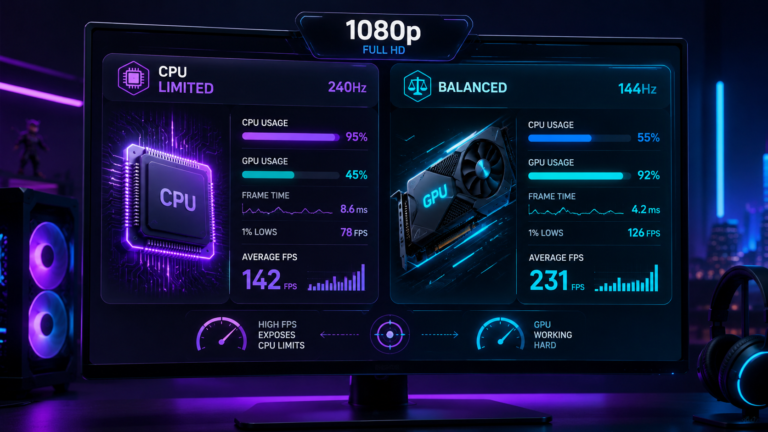
A CPU bottleneck is more serious for streaming than for gaming alone. If the CPU is already near its ceiling in the game, x264 encoding, browser sources, and background apps can push OBS into dropped-frame territory. Switch to NVENC or another hardware encoder before assuming a hardware upgrade is required.
If the result shows a GPU bottleneck
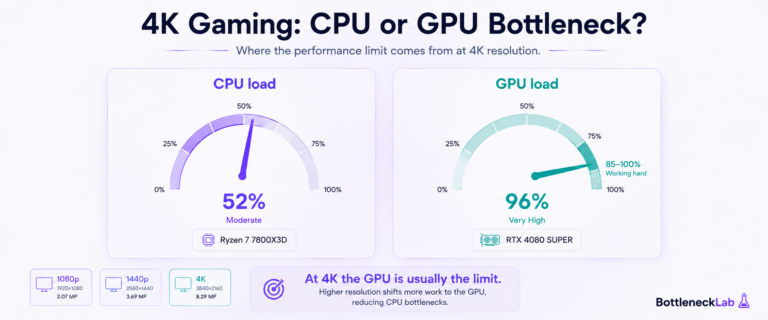
A GPU bottleneck at gaming resolution can be normal, especially in AAA games. If you use NVENC, encoding runs on a dedicated encoder block, but very high GPU 3D usage can still create render lag or scheduling pressure. Lowering a few GPU-heavy settings can improve stream stability.
If the result shows a balanced build
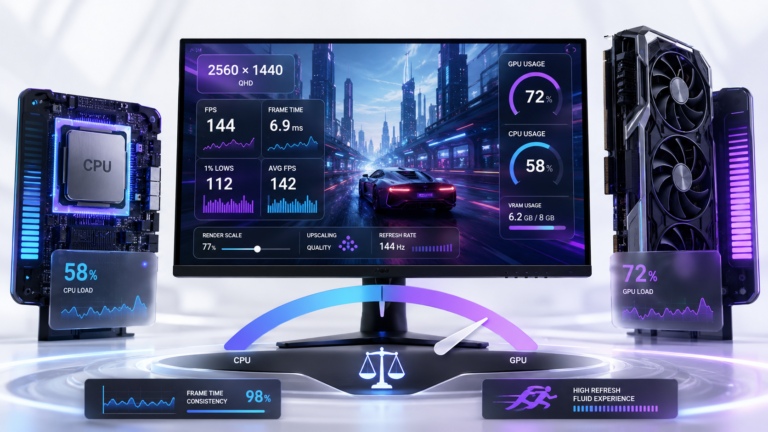
A balanced build is the best starting point for streaming. With NVENC, the CPU has more room for OBS scene compositing and browser sources. With x264, the CPU still needs extra headroom because encoding competes with the game.
Example: A Ryzen 7 7700X with an RTX 4070 can be strong for 1080p60 gaming and streaming. With NVENC H.264 or AV1 where supported, the stream workload is moved away from the CPU. With x264, the CPU has to absorb more encoding work, so OBS scene complexity and game CPU usage matter more.
If your result points to CPU pressure, use our practical steps to fix a confirmed CPU bottleneck. If GPU usage and graphics settings are the main limit, compare your symptoms with how to diagnose a GPU-side limit.
Common Streaming Bottleneck Mistakes
- Using x264 on a single PC without checking CPU headroom. x264 can compete directly with the game for CPU cycles.
- Ignoring NVENC when it is available. For many RTX single-PC streamers, NVENC is the better practical starting point.
- Running too many OBS browser sources. Alerts, overlays, chat widgets, and plugins can increase OBS CPU usage.
- Confusing network dropped frames with encoding lag. Network dropped frames point to upload or connection issues, not CPU/GPU balance.
- Streaming with RAM near full. Page-file activity can create stutter that looks like a CPU or GPU bottleneck.
- Letting GPU usage sit above 95% during streaming. Reduce heavy game settings slightly if render lag or stream stutter appears.
How to Diagnose a Streaming Bottleneck
Use the five steps below during a real stream test. Do not test only in a menu or empty scene. You need the game, OBS, browser sources, alerts, audio, and chat tools running together.
Check CPU usage
Open Task Manager or a monitoring overlay during a stream. If total CPU usage is consistently in the risk zone, find whether the game, OBS, browser sources, or background apps are responsible.
Check OBS Stats for dropped-frame type
Open the OBS Stats dock. Encoding lag, render lag, and network dropped frames point to different causes, so do not treat them as the same problem.
Check GPU 3D usage and encoder usage
If you use NVENC, check whether the GPU video encoder is active. If GPU 3D usage is very high and render lag appears, lower graphics settings slightly.
Check RAM, temperatures, and clocks
Look for RAM near full, disk activity spikes, CPU/GPU temperature issues, or clock drops after several minutes. Thermal throttling and RAM pressure can look like a bottleneck.
Compare the result with streaming headroom
After checking OBS and live monitoring, compare your gaming-side result with the headroom zones in this guide. Upgrade only after encoder choice, RAM, background apps, and settings are checked.
Test Your Gaming and Streaming Setup
Run your CPU and GPU through the main tool at your gaming resolution, then compare the result with OBS Stats, encoder choice, CPU headroom, RAM usage, and dropped-frame type.
Test your gaming and streaming setup →Final Streaming Bottleneck Verdict
A streaming bottleneck is not only CPU vs GPU. It is CPU plus GPU plus encoder choice plus OBS scene load plus RAM plus upload stability. That is why a build can look fine in a gaming-only check but struggle once OBS, alerts, browser sources, recording, and streaming are added.
For most single-PC streamers with an RTX GPU, hardware encoding is the safest starting point. For x264, make sure the CPU has enough thread count and headroom. For AV1, check your GPU, OBS, and streaming platform support before relying on it.
The best streaming build is the one that keeps the game smooth, keeps OBS stable, avoids encoder overload, and leaves enough headroom for the real tools streamers actually run.
Frequently Asked Questions
Is CPU or GPU more important for streaming?
It depends on the encoder. With x264, the CPU is more important because software encoding competes with the game for CPU cycles. With NVENC, AMF, or QuickSync, a dedicated hardware encoder handles much of the stream workload, so CPU pressure is lower. For most single-PC streamers, CPU headroom, GPU usage, encoder choice, RAM, and OBS scene complexity all matter together.
Is NVENC better than x264 for single-PC streaming?
For most single-PC streamers with a modern NVIDIA RTX GPU, NVENC is usually the better practical choice. It keeps encoding away from the CPU, which helps the game stay smoother and reduces the chance of encoder overload. x264 can still be useful on a dedicated streaming PC or a high-core-count system, but it needs more CPU headroom.
Is AV1 worth it for streaming?
AV1 can be worth it when your GPU, OBS setup, and streaming platform support it. It can deliver cleaner quality than H.264 at similar bitrates. For YouTube, NVENC AV1 is a strong option on supported RTX 40-series GPUs. For Twitch, H.264 is still the safest broad default, so check current platform support before planning around AV1.
Why does OBS drop frames during streaming?
OBS can drop frames for different reasons. Encoding lag means the encoder cannot keep up. Render lag often means the GPU or OBS scene rendering is under pressure. Network dropped frames usually mean upload speed or connection stability is the problem. The fix depends on which category appears in OBS Stats.
How much RAM do I need for gaming and streaming?
16GB can work for lighter gaming and simple streams, but 32GB is the practical recommendation for current gaming and streaming builds. Modern games, OBS, Discord, browser alerts, chat tools, and background apps can push memory usage high enough that paging to disk creates stutter.
Can GPU usage cause streaming problems with NVENC?
Yes, but not always because of the encoder itself. NVENC uses a dedicated encoder block, but if GPU 3D usage is extremely high, OBS can still show render lag or stream instability. Lowering a few GPU-heavy settings, limiting FPS, or reducing scene complexity can improve stream stability.
Should I upgrade my CPU for streaming?
Upgrade only after checking encoder choice, OBS Stats, CPU usage, RAM usage, temperatures, background apps, and scene complexity. If you are using x264 and CPU usage is consistently high, a CPU upgrade can help. If NVENC solves the issue, the better fix may be settings rather than new hardware.