Will Your CPU Hold Back Your GPU? How to Check Before You Upgrade
A new graphics card only pays off if the rest of the PC can keep it busy. When the processor cannot prepare frames fast enough, the GPU sits idle and you pay for performance you never see. This guide explains what a CPU bottleneck is, how to spot one with free tools, and what to do about it before you spend money.
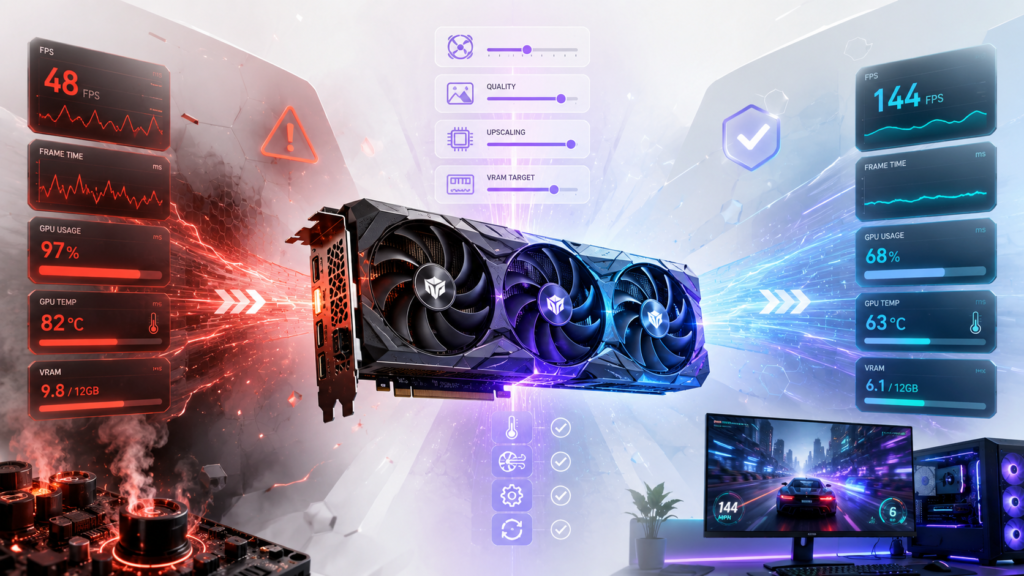
What a CPU Bottleneck Means
Every frame in a game passes through two stages. The CPU handles game logic, physics, AI and the draw calls that tell the GPU what to render. The GPU then draws the frame. If the CPU takes longer than the GPU to finish its part, the graphics card waits, and the slower stage sets the frame rate.
That is a CPU bottleneck. It is not a defect and harms no hardware. It means the processor is the limiting part in that game, at those settings.
Two things change where the limit sits: the game and the settings. Resolution, texture quality and ray tracing load the GPU. Draw distance, crowd size and simulation detail load the CPU. A pairing that looks balanced in one title can be lopsided in another.
Signs Your CPU Is Holding Back Your GPU
- GPU usage stays well below its usual ceiling, often under about 90%, while you play.
- One or more CPU cores sit close to 100%.
- FPS barely changes when you lower resolution or graphics quality.
- Frame rate collapses in crowded scenes, cities or multiplayer matches.
- Average FPS looks fine, but the 1% lows are far worse and the game stutters.
How to Check It Yourself
- Pick a demanding scene. Use the game you care about, in a busy area rather than a menu. Turn off V-Sync and any frame cap first, or GPU usage will look low even when nothing is wrong.
- Show live usage. Task Manager (Ctrl + Shift + Esc, then the Performance tab) shows GPU usage. The NVIDIA app overlay and AMD Software: Adrenalin Edition both display CPU and GPU usage in game, and MSI Afterburner with RivaTuner works with many GPU brands.
- Look at cores, not the total. In Task Manager, right-click the CPU graph and switch to logical processors. Many games lean on one or two main threads, so a total of 45% can hide a single core at its limit.
- Run a resolution test. Drop resolution and graphics quality a step or two. If FPS jumps, the GPU was the limit. If it barely moves, you have a CPU bottleneck.
Reading the Numbers Without Fooling Yourself
Some readings mislead when you are hunting for a CPU bottleneck. A frame cap or V-Sync holds the frame rate down, so GPU usage looks low even though the CPU has spare capacity. Stress tests push a part to its maximum on purpose, so they say nothing about balance. Check a second game before drawing conclusions.
A GPU running at 95% to 100% is not a problem. In most games that is the healthy outcome, because the graphics card should be the busiest part. Some limit always exists, so the aim is a limit that costs you no frames you want.
Use a CPU GPU Bottleneck Calculator for a First Estimate
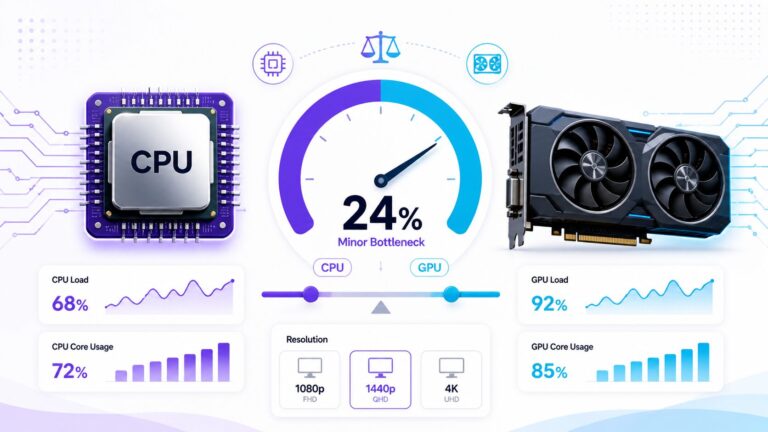
Live checks need the parts already installed. While you are still deciding what to buy, a CPU GPU bottleneck calculator gives a quick estimate of how a processor and graphics card pair up. Select both models, choose your resolution and workload, then compare results for the card you are considering.
Treat the output as a starting point. A calculator works from benchmark data and cannot see your drivers, background apps, cooling or the specific game you play. Confirm it with the live checks above once the hardware is installed.
What to Do If the CPU Is the Limit
If the tests point to a CPU bottleneck, start with the cheaper fixes:
- Close background apps and browser tabs before gaming.
- Lower CPU-heavy settings such as view distance, crowd density and simulation quality.
- Enable XMP or EXPO in the BIOS so the RAM runs at its rated speed.
- Check cooling, since thermal throttling lowers CPU clock speeds.
If those do not help, upgrade the CPU rather than the GPU. Check the socket before buying. A newer chip on your current socket may work after a BIOS update, so read the motherboard’s CPU support list. A newer platform usually means a new motherboard, and on AMD’s AM5 platform it also means DDR5 memory. A PC upgrade checker can rank what to replace first from your current CPU, GPU, RAM, target resolution and budget, and it flags when a new processor would also need a new board.
Quick Reference
| What you see | Likely limit | First move |
| GPU at 95% to 100%, CPU has room | GPU | Lower resolution or effects, or plan a GPU upgrade |
| GPU usage low, one core near 100% | CPU | Lower CPU-heavy settings, then consider a new CPU |
| GPU usage low, no core near 100% | Frame cap, V-Sync, RAM, storage or the game itself | Remove caps, then check RAM and storage |
| Both busy, temperatures up, clocks falling | Thermals | Clean the system and improve airflow |
FAQs
Can a CPU bottleneck damage my GPU?
No. The graphics card simply works below its capacity, and the only cost is lost performance.
Does the CPU matter at 1440p or 4K?
Less than at 1080p in most games, because higher resolution moves more of the work to the GPU. A processor can still limit very high frame rates and CPU-heavy games.
Will a faster GPU fix stutter?
Only if the GPU is the part running out of room. When usage is low and one CPU core is maxed out, a new card mostly sits idle.
Can RAM or storage cause the same symptoms?
Yes. Running short of memory or loading data from a slow drive can cause stutter and low GPU usage. If no CPU core is maxed out, check those before blaming the processor.
When should I check again?
After changing a major part, your monitor’s resolution or refresh rate, or the kind of games you play.