How to Optimize Your PC for Smooth Video Streaming and Offline Playback
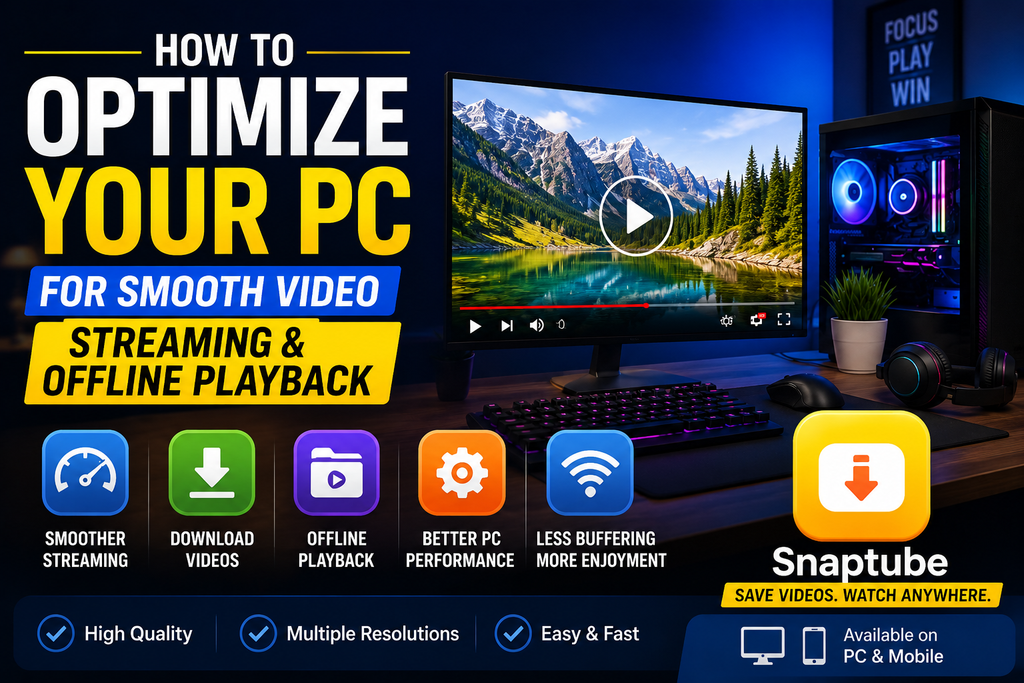
Watching videos on a PC should be an easy experience. You open a video, press play, and expect smooth playback. Unfortunately, things do not always work that way. Buffering, sudden pauses, low quality, slow loading, and high system usage can quickly turn a relaxing viewing session into a frustrating one. The problem becomes even more noticeable when you are using a weak internet connection or trying to watch high quality videos.
But don’t worry. You can solve many of these problems by changing the way you stream and manage your video content. One practical option is using Snaptube bluestacks on a compatible PC setup to access supported Android based video downloading features. Instead of depending on continuous streaming, you can save suitable content for offline viewing and enjoy it later with fewer interruptions.
Why Does Video Streaming Become Slow on a PC?
Before looking at the solution, it is important to understand why video playback becomes unstable.
A slow internet connection is one common reason. Streaming constantly requires data, and high resolution videos require even more bandwidth. If your connection cannot provide enough speed consistently, buffering can occur.
Your computer can also contribute to the problem. Too many background applications may consume RAM and CPU resources. An outdated browser, limited storage, old graphics drivers, or excessive browser tabs can make the overall experience slower.
Sometimes the problem is not your PC or internet at all. The streaming server itself may be experiencing heavy traffic. This is why relying entirely on online streaming is not always convenient.
Use Snaptube for Offline Video Viewing
One simple way to reduce your dependence on continuous streaming is to download suitable content for offline viewing.
Snaptube can be useful for this purpose. It combines video discovery and downloading features, allowing users to save supported content and watch it later.
Instead of streaming the same video every time you want to watch it, you can download it once when you have a stable WiFi connection. Afterward, the saved file can be played without depending on your internet connection.
This can be particularly useful for:
- Movie trailers
- Gaming tutorials
- Educational videos
- Entertainment clips
- Music and audio content
- Video guides
- Other content available for lawful downloading
Offline playback can remove buffering caused by an unstable connection and make your viewing routine more convenient.
Choose the Right Video Quality
Downloading every video in the highest possible quality is not always a good idea. A 4K video requires considerably more storage than a 720p or 1080p file. If your PC has limited storage, downloading everything in the highest resolution can quickly fill your drive.
Snaptube gives users different quality options for supported content. This makes it easier to choose a resolution according to your needs.
For example, 720p may be enough for a smaller display. A 1080p version can provide a better experience on a standard monitor, while higher resolutions may be more suitable for large screens. The right choice depends on your display, storage space, internet connection, and personal preference.
Download Videos Over WiFi
If your goal is to reduce interruptions and save mobile data, WiFi is usually the better option for larger downloads.
You can prepare your entertainment library while connected to a stable WiFi network. Once the videos are saved, you can watch them later without repeatedly streaming them.
This is especially useful before travelling. Instead of depending on an internet connection during a journey, you can prepare tutorials, entertainment videos, or other permitted content in advance.
It also makes sense to avoid downloading several large files at the same time if your internet connection is limited.
Keep Your PC Free From Unnecessary Load
Offline videos can reduce streaming requirements, but your PC still needs to handle playback smoothly. Start by closing applications that you are not using. Programs running in the background can consume RAM, CPU power, and sometimes network bandwidth.
Browser tabs can also make a difference. If you have dozens of tabs open while watching a video, your system may have to manage many processes simultaneously.
A cleaner desktop environment gives your media player more resources and can improve overall responsiveness.
Snaptube PC for a Larger Screen Experience
Many users prefer watching entertainment content on a larger screen rather than a smartphone.
You can use the Snaptube PC with the help of an emulator and use it on the big screen of the computer.
This setup can be useful for people who prefer managing or watching their supported downloaded content from a larger display.
However, an emulator uses additional system resources. A PC with sufficient RAM and processing power will provide a better experience. Closing unnecessary applications before launching the emulator can also help.
The exact experience can vary depending on your PC specifications, emulator configuration, and application compatibility.
Keep Enough Storage Available
Offline entertainment requires storage space. Videos can become large, particularly when you choose high resolution files. If you regularly download content, keep an eye on your available storage.
You can organize your files into folders such as:
- Movies and trailers
- Gaming videos
- Tutorials
- Music
- Educational content
- Other entertainment
Delete files you no longer need and avoid downloading multiple copies of the same video.
A well organized media library makes it much easier to find your content later.
Keep Your Graphics Drivers Updated
Graphics processing is important for modern video playback. If your graphics drivers are outdated, you may experience compatibility or playback problems with certain video formats.
Check for driver updates through your graphics hardware manufacturer’s official software. Keeping your operating system and browser updated can also improve compatibility.
You do not necessarily need an expensive graphics card for everyday video playback. The important thing is having hardware that matches the resolution and type of content you normally watch.
Reduce Buffering by Preparing Content in Advance
One of the biggest advantages of offline viewing is that playback does not depend on your internet speed after the content has been downloaded.
Imagine you are travelling and want to watch several gaming tutorials. Streaming every video individually could be difficult if the connection is weak.
Instead, you can prepare suitable videos beforehand when you have reliable internet access. Once they are saved, you can watch them without worrying about continuous buffering. This approach can also help when you frequently watch the same tutorials or guides.
Final Thoughts
Smooth video playback is not always about buying a more powerful PC or upgrading your internet package. Sometimes, changing how you manage your video content can make the experience much easier.
A stable connection, suitable video quality, enough storage, updated drivers, and fewer background applications can all contribute to better playback.
Offline viewing can provide another practical solution. By downloading permitted content in advance, you can reduce your dependence on continuous streaming and avoid buffering when your connection is unreliable.
Snaptube is useful for this type of viewing routine because it brings supported video discovery and downloading into one place. Whether you want to prepare gaming tutorials, entertainment clips, educational videos, or other suitable content, downloading them over WiFi and watching them later can make your PC entertainment experience more flexible.